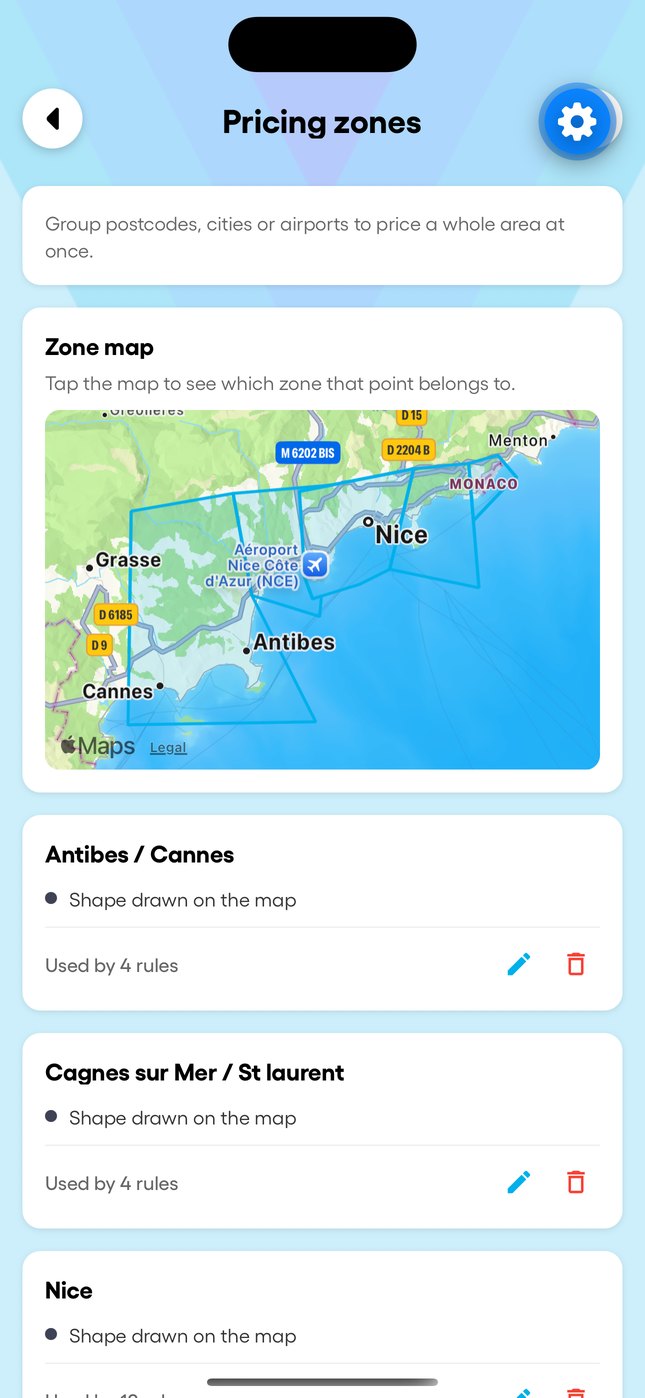
Draw pricing zones
A zone groups addresses so they share one price: rather than pricing Grasse, Mougins and Valbonne one by one, you draw the zone once and every address inside it takes its price.
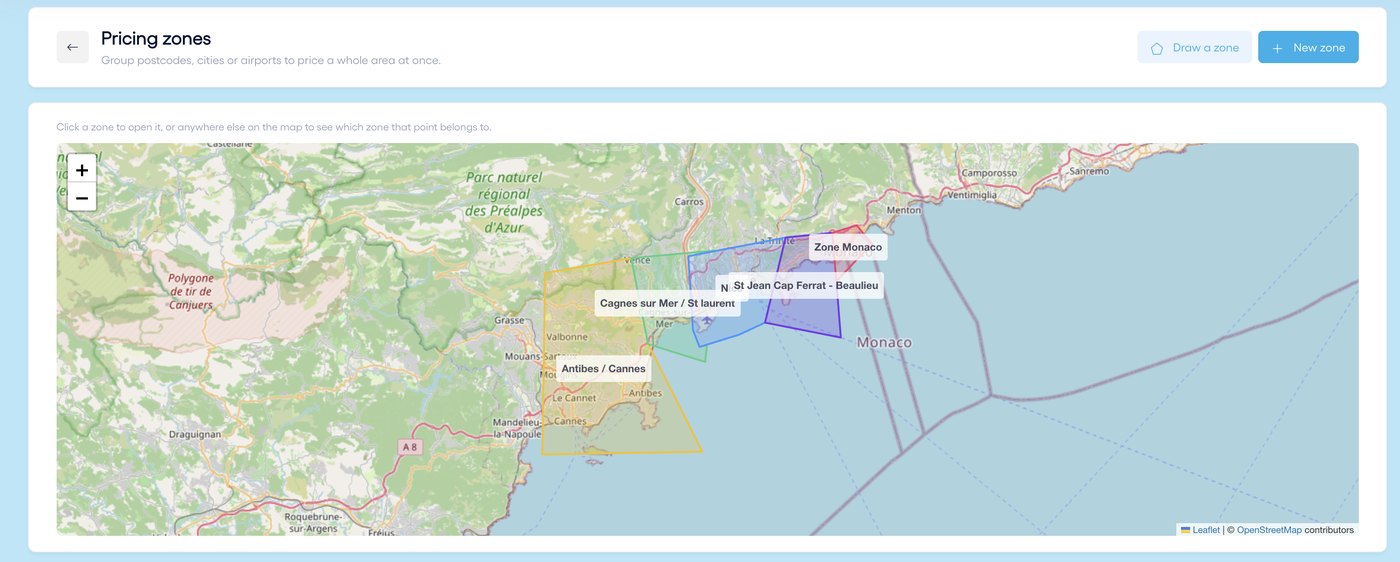
1. Draw the zone
- Click "New zone", give it a name, then draw the shape on the map.
- Click to place each point, then on the first point to close the shape. Points snap to the edges of neighbouring zones.
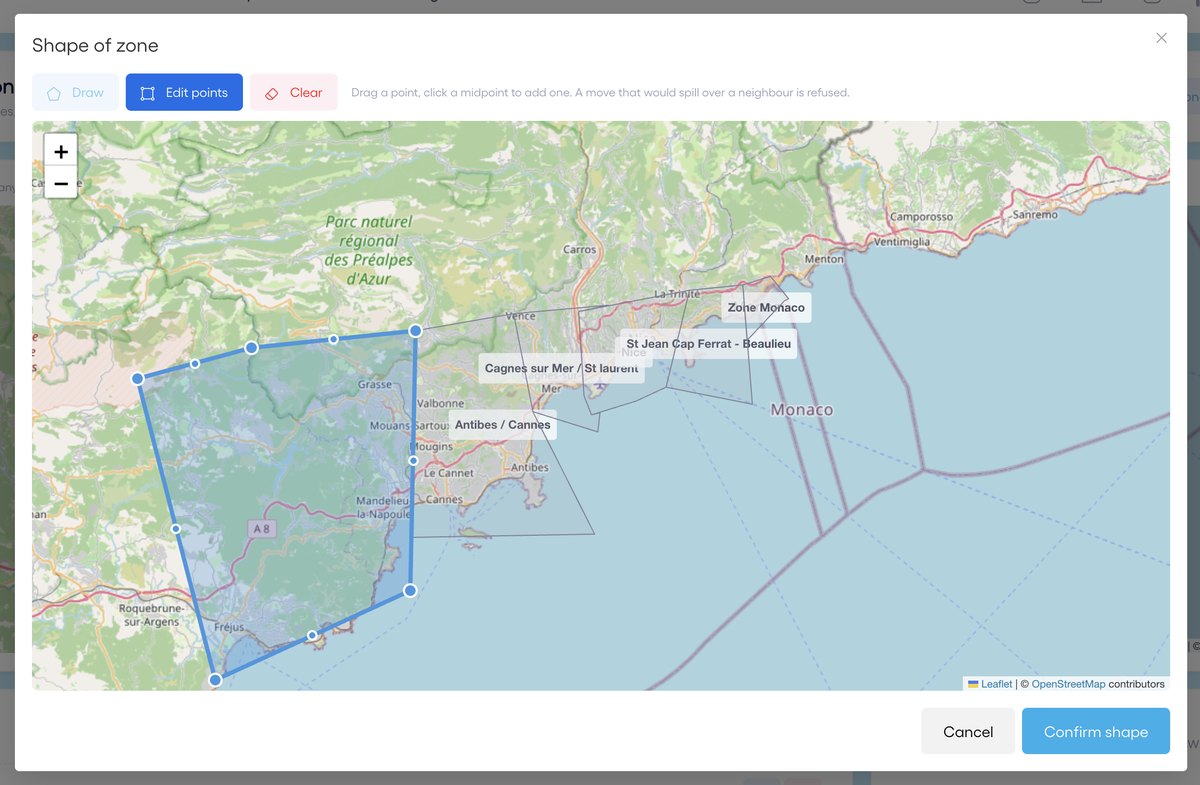
- "Edit points": drag a point, or click a midpoint to add one. "Clear" starts over.
- Click "Confirm shape", then save the zone.
2. If the zone spills over
Two zones cannot overlap, otherwise one address would have two prices. Droovi detects it on its own: when you finish drawing, the part that spills over a neighbouring zone is removed and a message tells you, so you can check the result before confirming. When editing points, a move that would spill over a neighbour is refused. Neighbouring zones are shown in grey: the new shape may touch them, not overlap them.
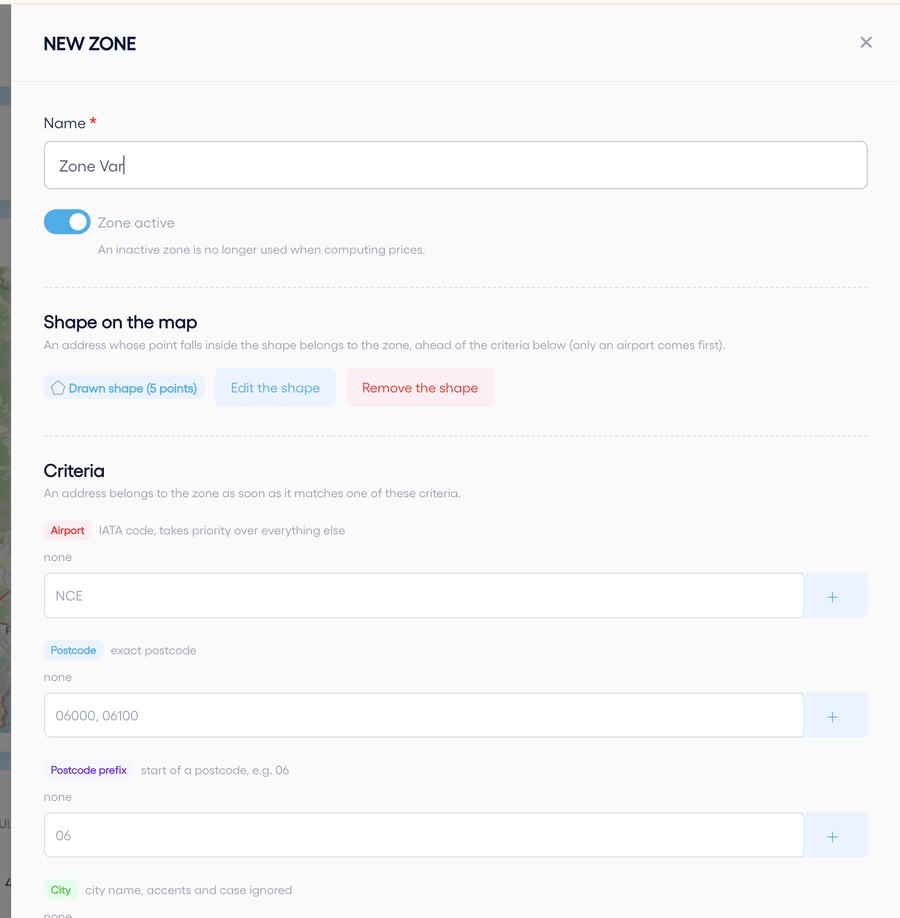
3. Shape and criteria
A zone can also be defined by criteria: airport code (IATA), exact postcode, postcode prefix (06) or city. An address belongs to the zone as soon as it matches one criterion. The order: the airport comes first, then the drawn shape, then the other criteria. An inactive zone is no longer used to compute prices.
4. Price the zone
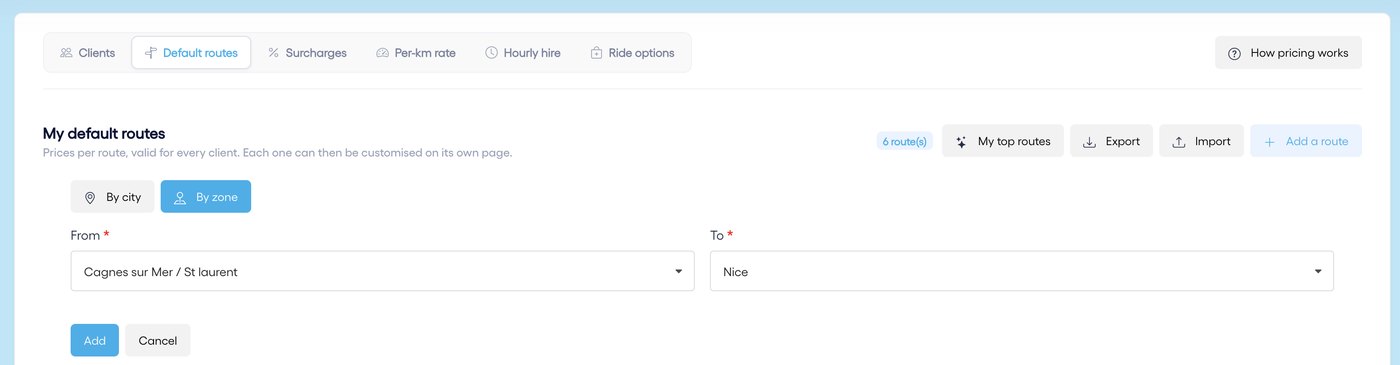
- In "Default routes" or on a client's page, click "Add a route".
- Choose "By zone", then the departure and arrival zones.
- Enter the price per vehicle. In a grid, zone routes are checked before city routes.
In the mobile app
The "My prices" menu, then "Zones", shows your zones on the map and their rules. Tap the map to see which zone a point belongs to. To draw or redraw a zone, use the CRM.