
Assign a ride to a driver
A ride is assigned when you choose who does it: one of your drivers or a subcontractor. You can do it from the CRM or from the mobile app.
Open the Transfers menu. The Today, Tomorrow, All and To complete tabs filter your rides.
1. From the CRM
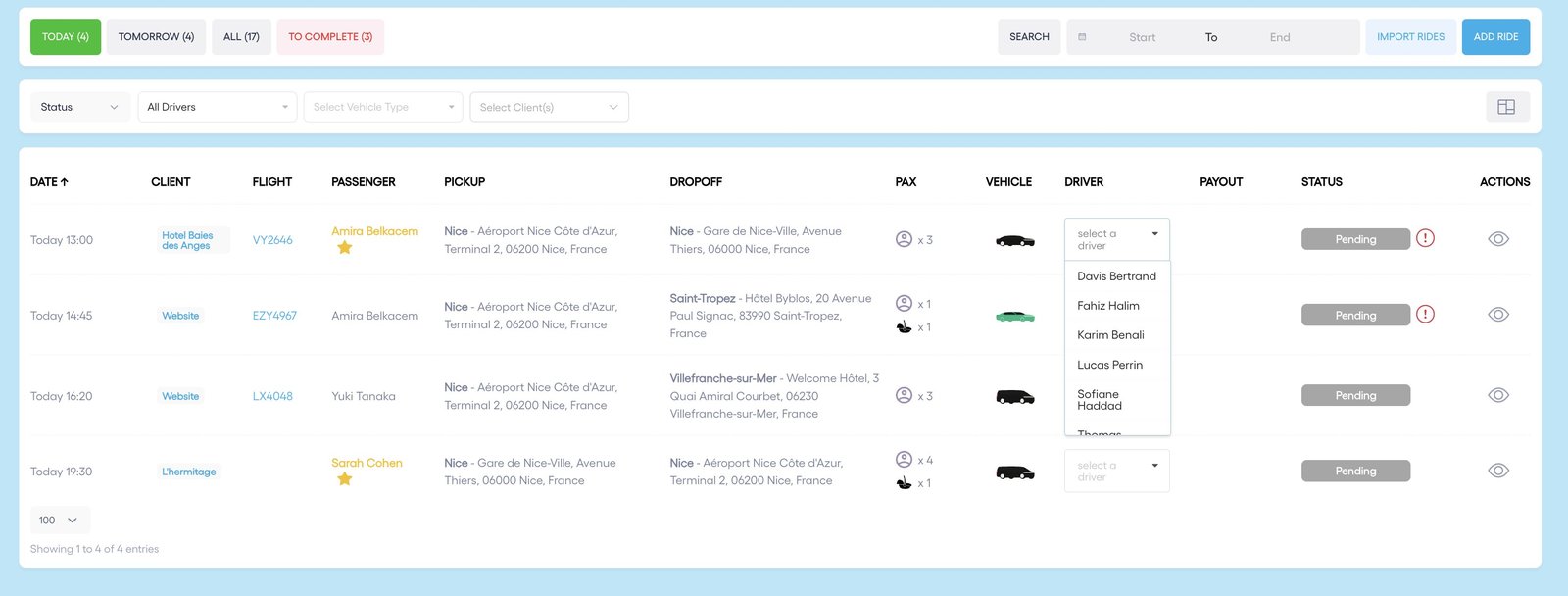
- In the Driver column, click the ride's drop-down.
- Pick a driver. Entries starting with "ST - " are your subcontractors: the ride is handed to them.
- It is saved straight away: the ride shows up in the driver's app and they get a notification.
2. From the mobile app
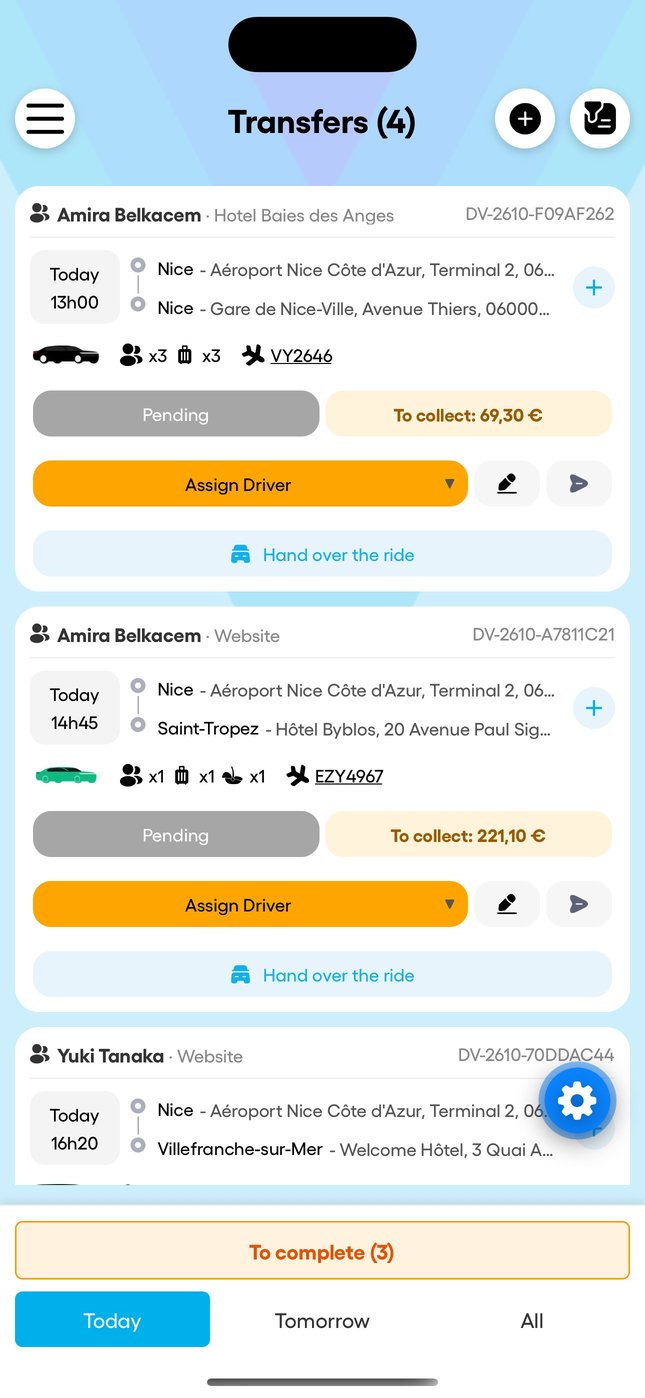
- Open "Transfers".
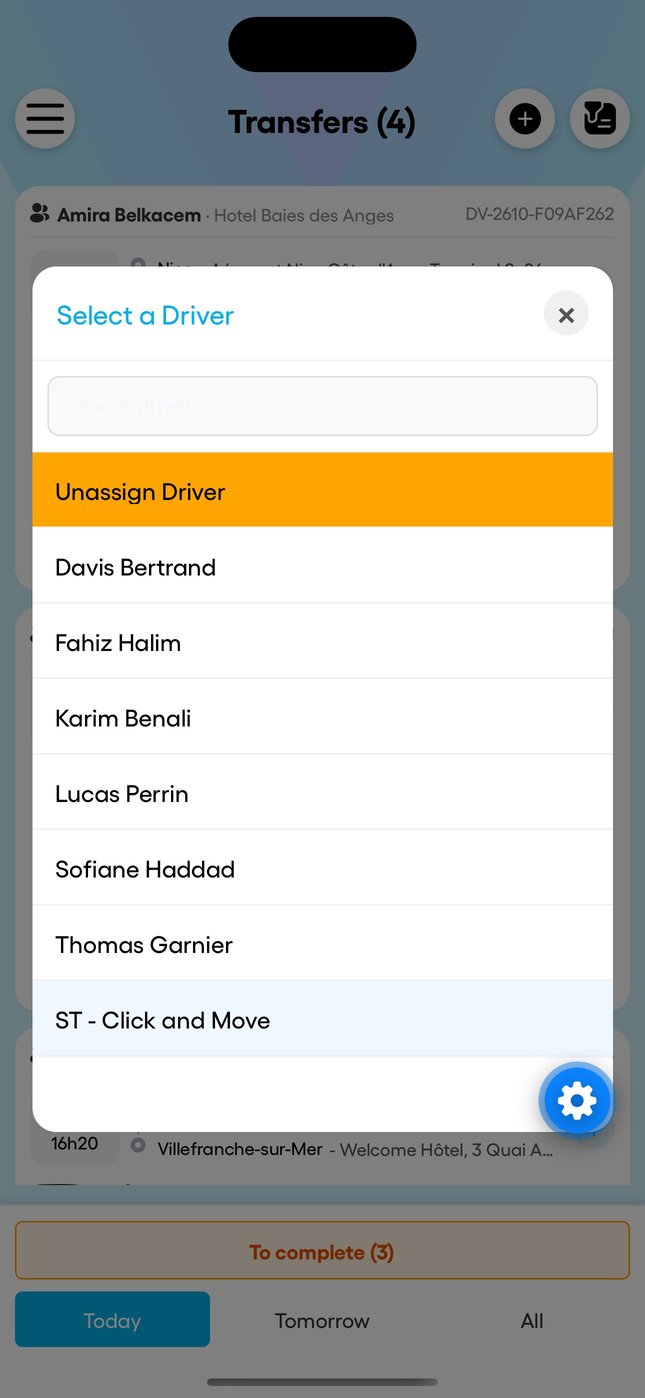
- On the ride, tap "Assign Driver".
- Pick the driver or subcontractor. "Unassign Driver" frees the ride.
3. Hand the ride over
- "Hand over the ride", then share it with your network: your subcontractors or the companies in your area.
- Driver link: send the ride to a driver who does not have the app; they accept it from a simple link.
The red exclamation mark next to a ride flags an alert (hover over it for details). A ride with no driver stays "To dispatch".
Learn more Droovi dispatch software Was this article helpful?