
Send a ride by link
Your partner driver does not use Droovi? Send them the ride with a simple link. They accept it and run it from their phone's browser, with no app and no account, and you follow every step live.
In the CRM: open the ride, "Publish this ride" section, "Driver Event Link" tab. In the app: "Hand over the ride", then "Driver link".
1. Create the link from the CRM
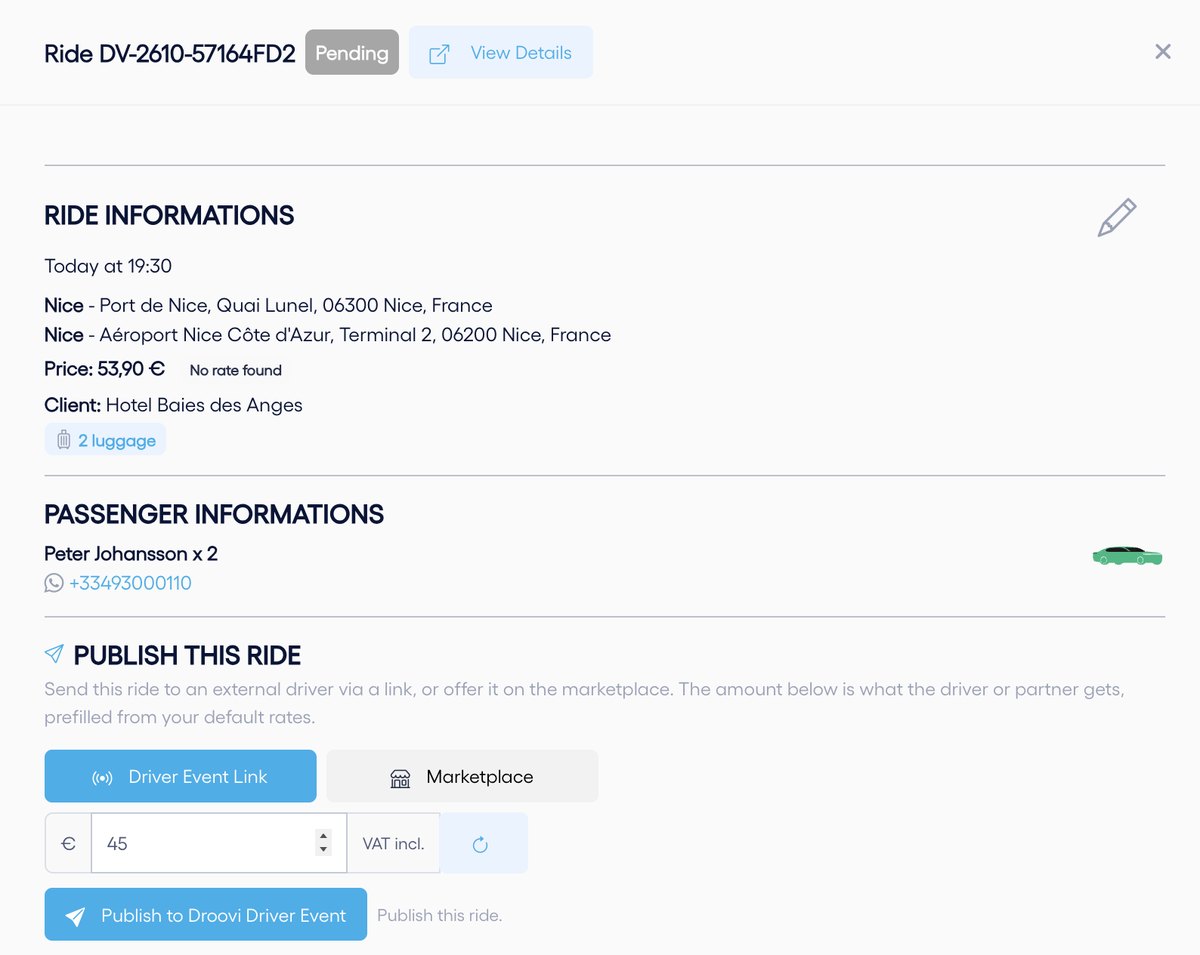
- Open the ride from Transfers and scroll down to "Publish this ride".
- Choose the "Driver Event Link" tab and enter the price, VAT included, you pay the driver. It is prefilled from your rates; the button on the right recalculates it. The difference with the client price is your margin.
- Click "Publish to Droovi Driver Event".
- Copy the link that appears and send it by WhatsApp, text message or email.
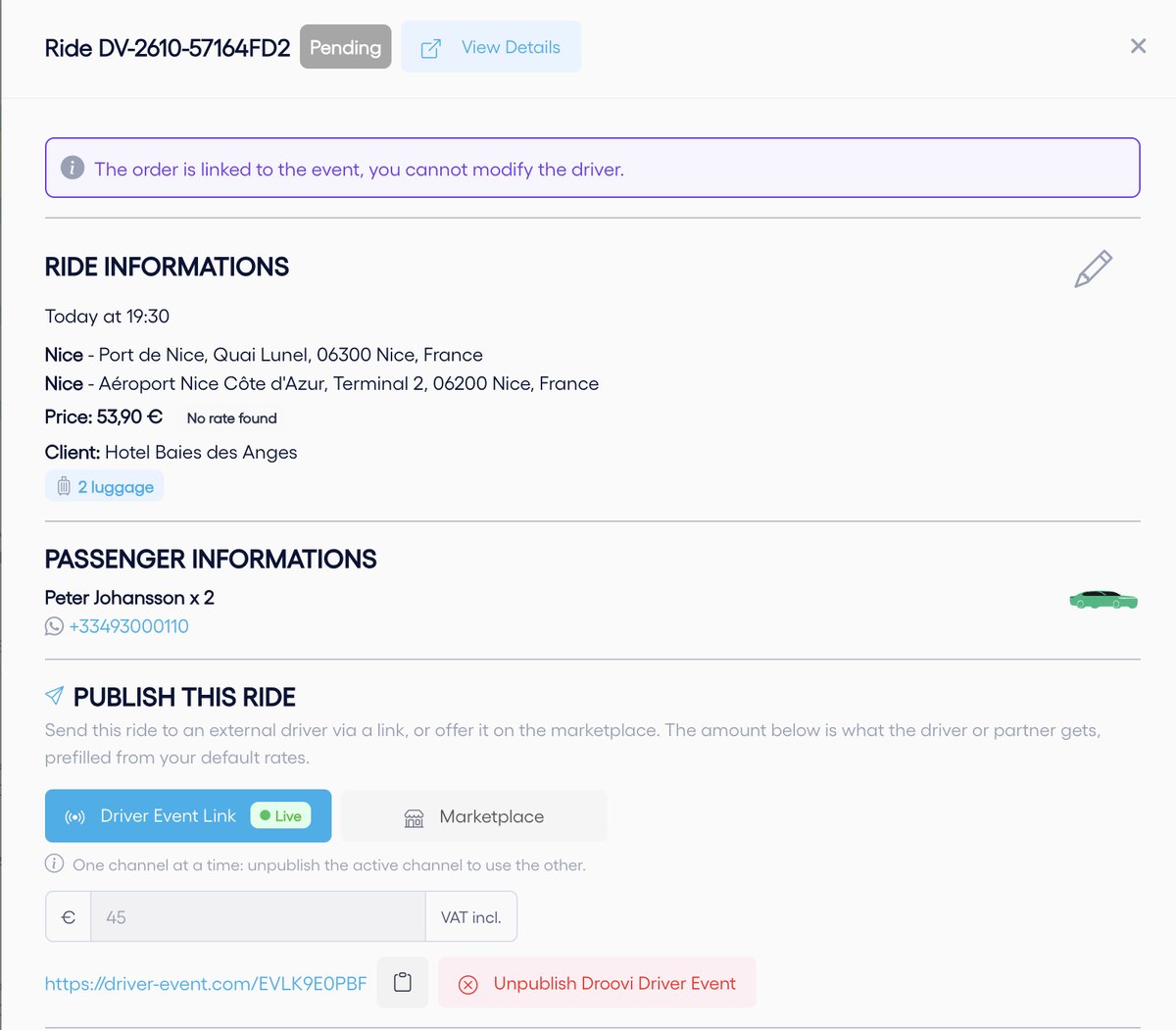
While the link is live, the ride's driver cannot be changed and the ride cannot be on the marketplace at the same time: one channel at a time. "Unpublish Droovi Driver Event" takes the link down.
2. From the mobile app
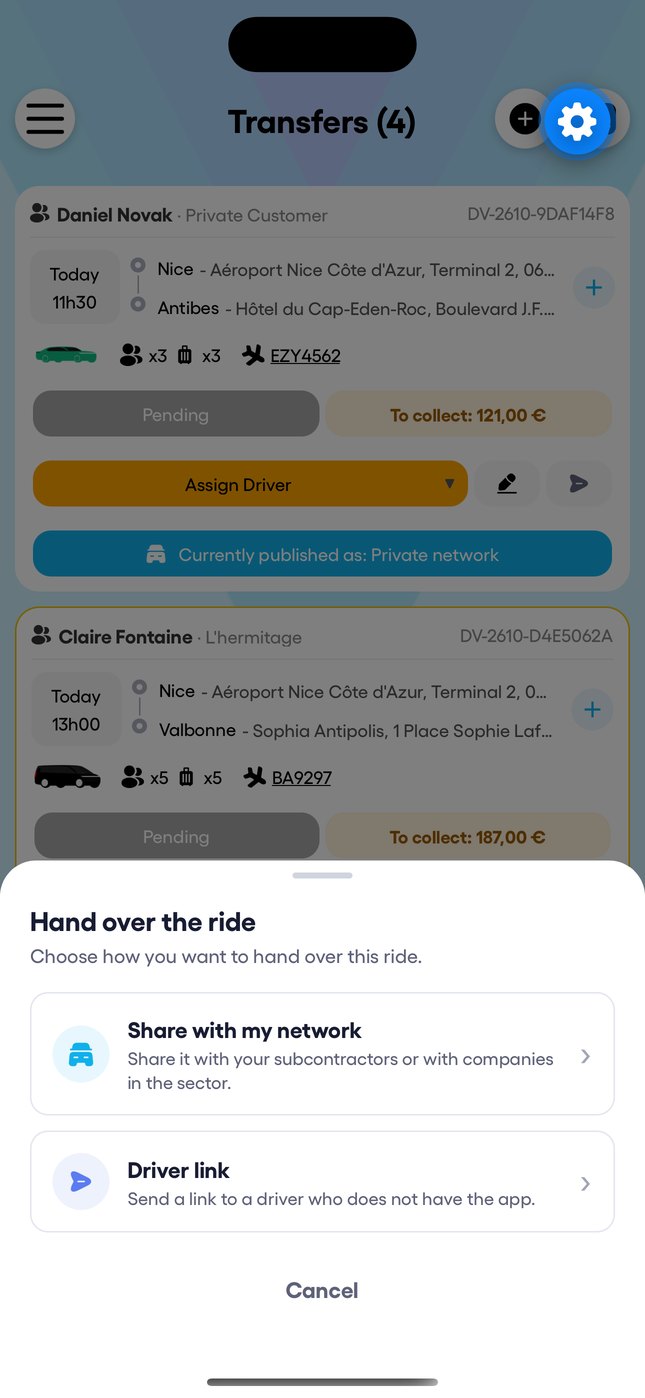
- In "Transfers", tap "Hand over the ride" under the ride.
- Choose "Driver link" and enter the price paid to the driver.
- Share the link with the driver.
3. On the driver's side
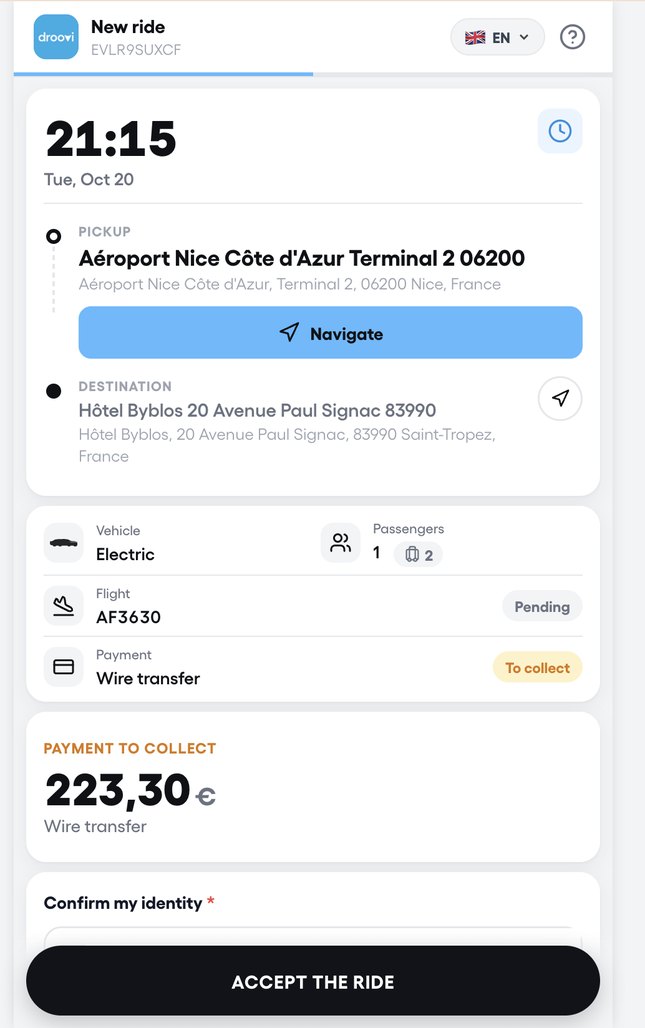
- They open the link and see the full ride sheet: time, addresses, flight, vehicle, passengers and payment method.
- To accept, they enter their phone number and get a 6-digit code on WhatsApp, then their first name, last name and number plate.
- They slide a button at each step (on the way, on site, passenger on board, dropped off): the GPS position is recorded and you follow progress in Droovi.
- If something goes wrong (no-show, delay…), they report it from the page and you receive it with the time.
4. What you owe the drivers
The Finance menu, then "Driver links", lists month by month the rides sent by link: rides sent, rides accepted and the total owed to drivers, with the amount for each ride. Cancellations are not counted.
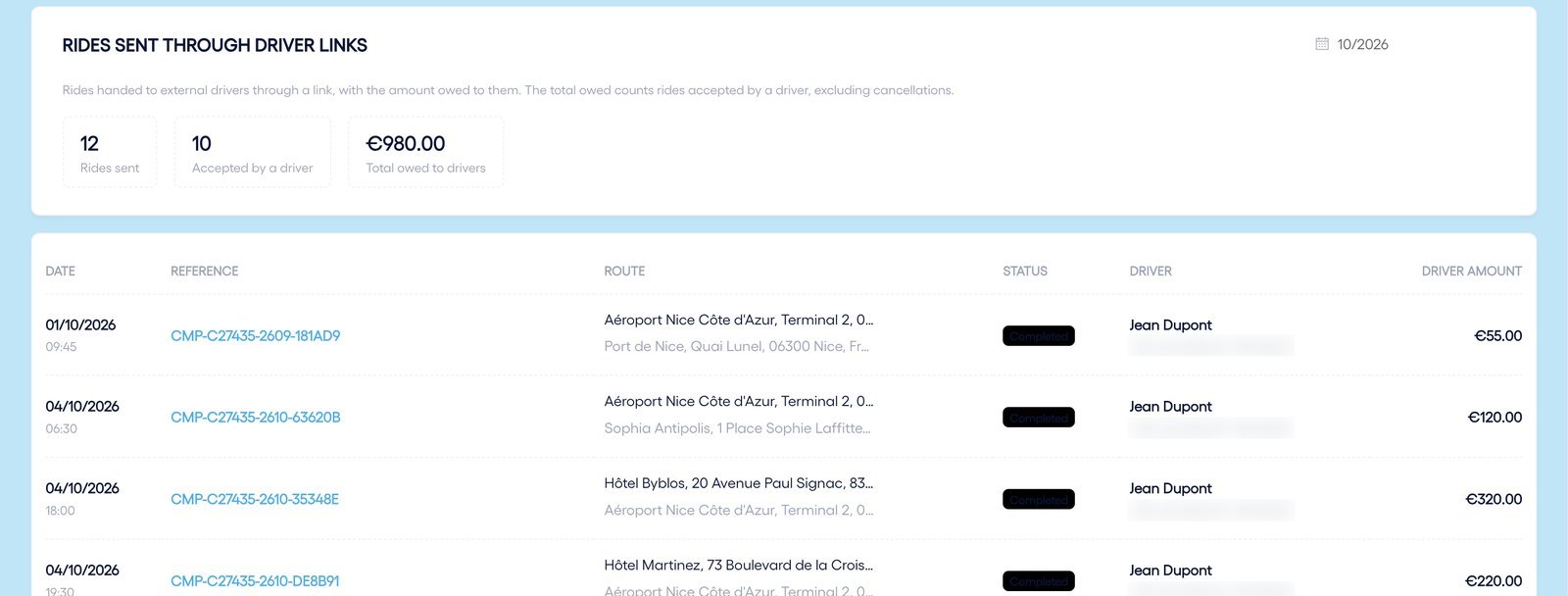
The driver is not registered on Droovi, so there is no automatic self-billing as with a subcontractor. You pay them directly using this list. If they work with you often, add them as a subcontractor.
The driver link is not included in the Free plan.
Learn more The driver link, in detail Was this article helpful?