
Set up your company
Before you create your first rides, take five minutes to fill in your company details. They appear on your invoices, your ride vouchers and in your drivers' app.
To open the page: click your initials in the top right corner, then "Company". It is available to managers and has 5 tabs: Company, Drivers, Operations, WhatsApp and Invoicing.
1. Company tab
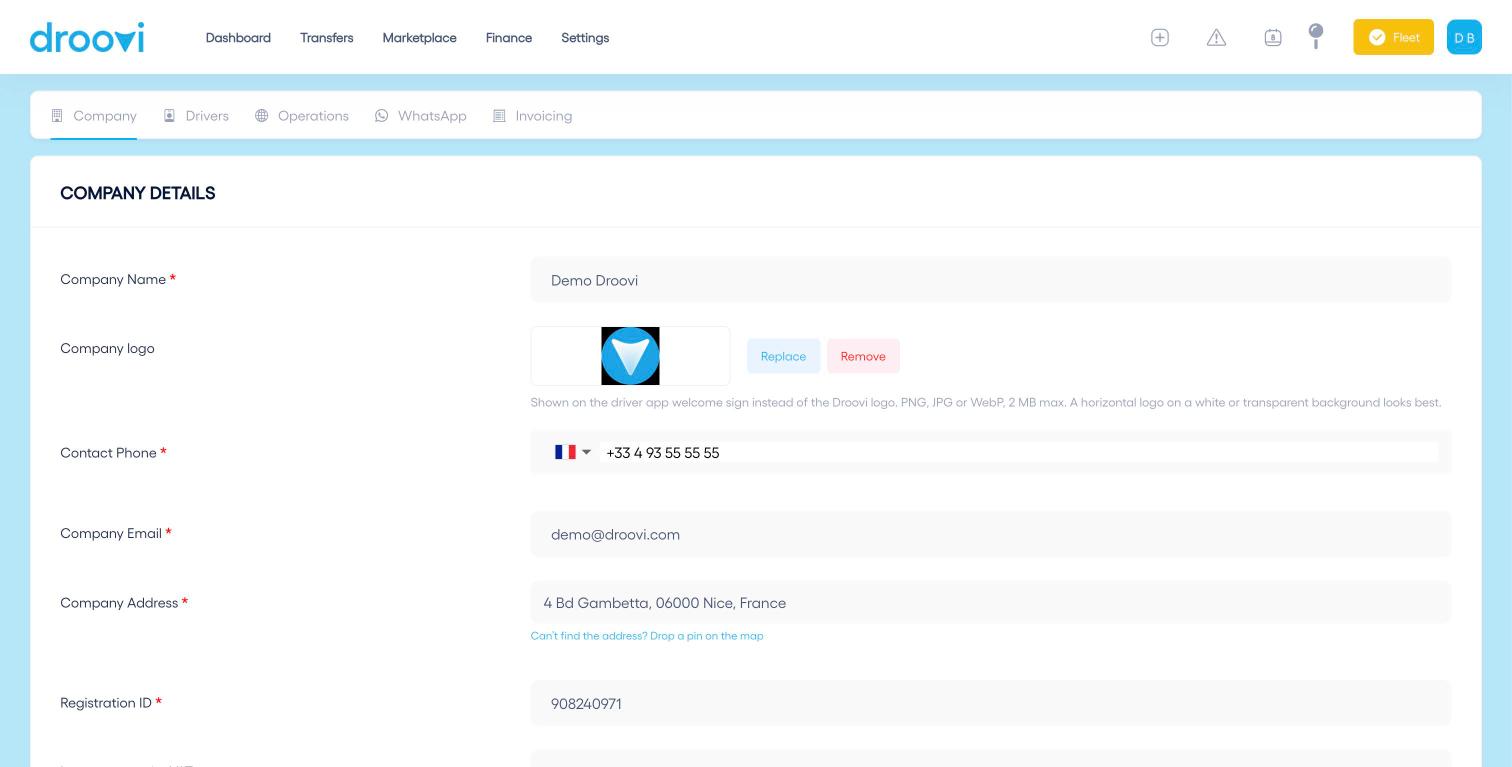
- Enter the company name, contact phone, email and address. They appear on your invoices and quotes. If the address cannot be found, click "Drop a pin on the map".
- Upload your logo (PNG, JPG or WebP, 2 MB max). It replaces the Droovi logo on the welcome sign of the driver app.
- Further down, add your registration ID and your VAT number.
2. Drivers tab
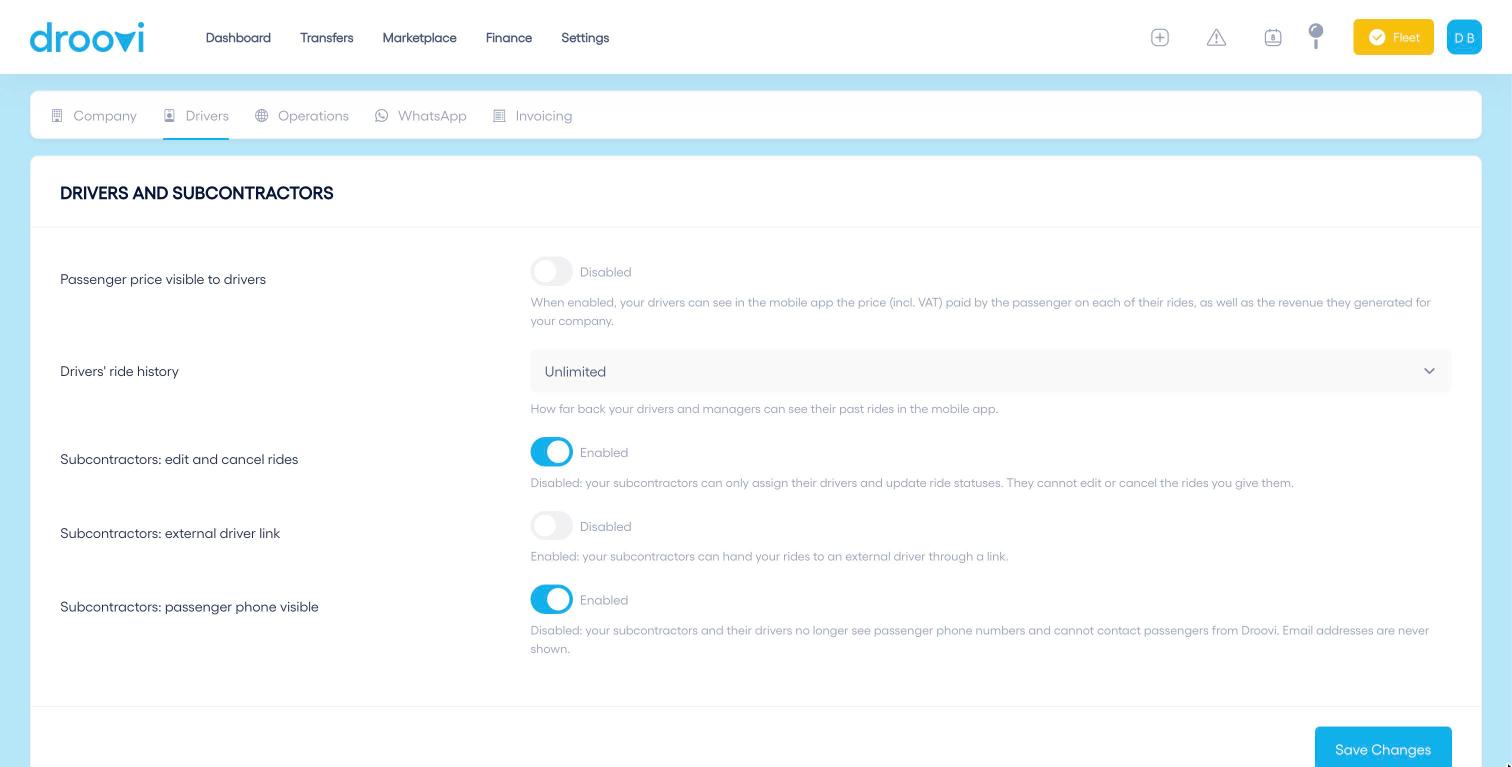
- Passenger price visible to drivers: drivers see in the app the price (incl. VAT) paid by the passenger and the revenue they generated.
- Drivers' ride history: how far back they can see their past rides.
- Subcontractor rights: edit or cancel your rides, hand them to an external driver through a link, see the passenger phone number.
3. Operations tab
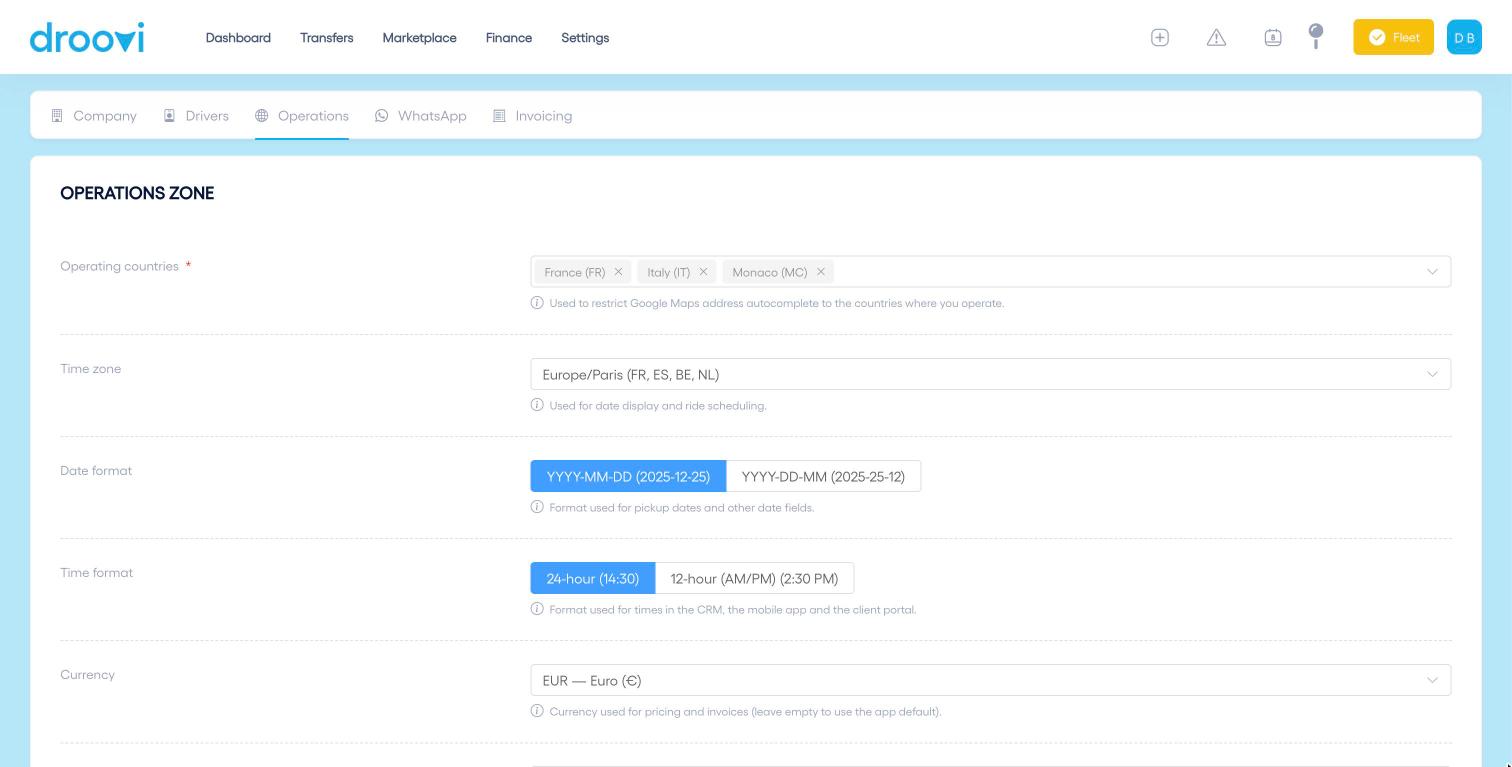
- Operating countries: Google Maps address autocomplete is limited to these countries.
- Time zone: used to display dates and schedule rides.
- Date format and time format (24-hour or 12-hour AM/PM): applied in the CRM, the mobile app and the client portal.
- Currency, VAT rates and default VAT: used for your prices and invoices. The default rate can be changed ride by ride.
- Vehicle types offered: only these types appear in your forms. Leave empty to offer all of them.
Click "Save Changes" at the bottom of each tab.
4. WhatsApp and Invoicing tabs
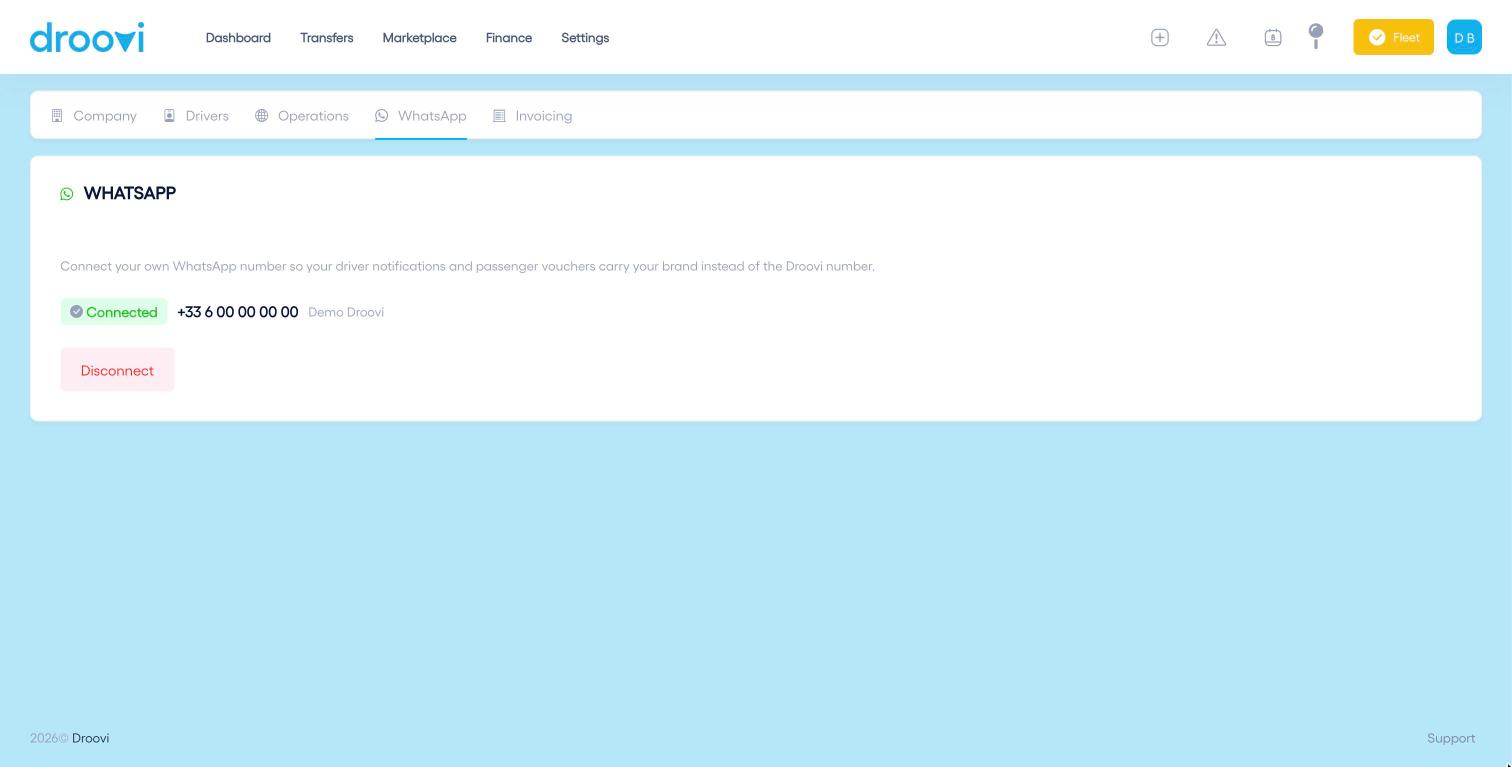
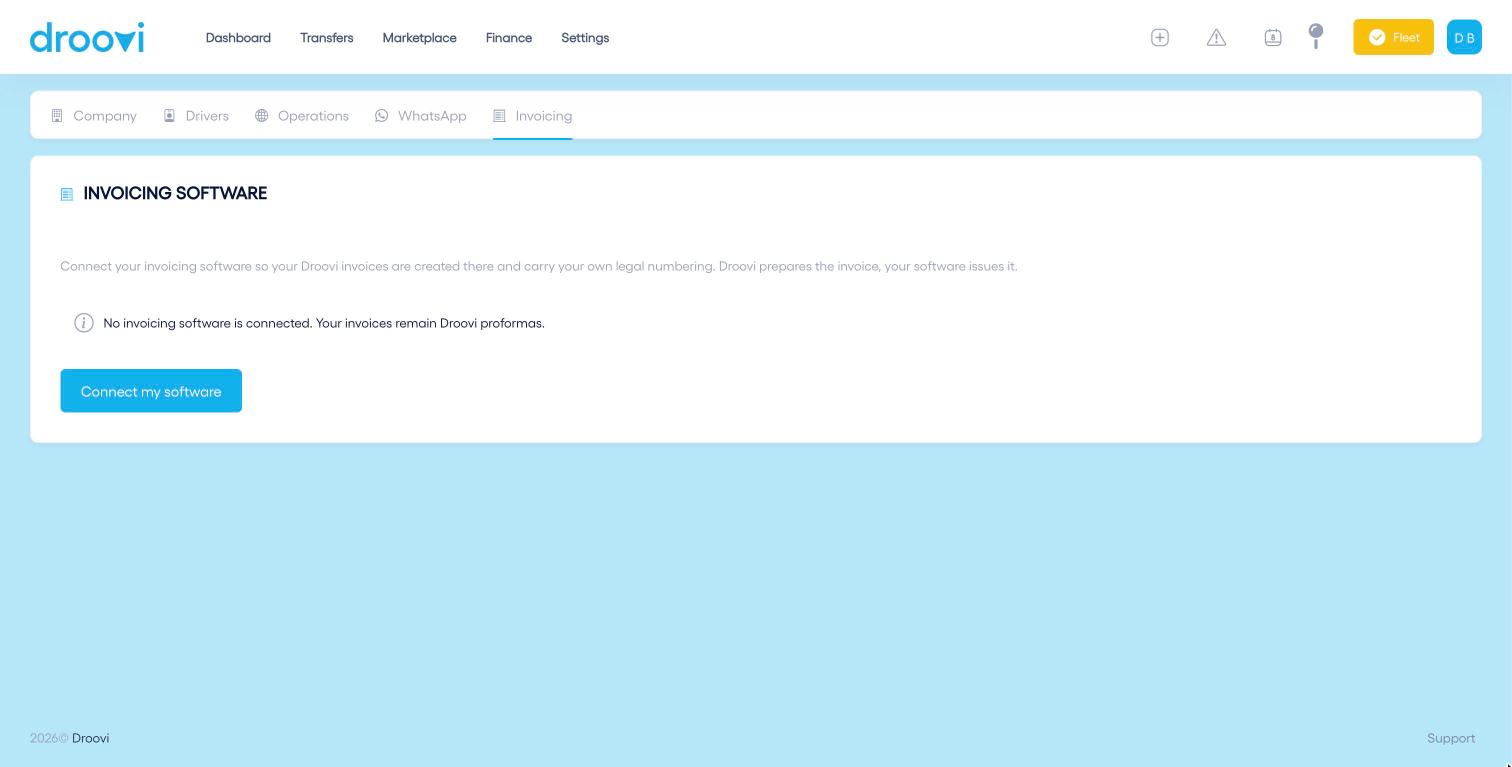
The WhatsApp tab connects your company number, so driver notifications and passenger vouchers carry your brand. The Invoicing tab connects your invoicing software; until one is connected, your invoices remain Droovi proformas.
Was this article helpful?