
Add your vehicles
Register every vehicle in your fleet: it then shows up in your rides, price grids and your drivers' app, and Droovi tracks its documents and deadlines.
Open the vehicles page: Settings menu, then "Vehicles".
1. From the CRM
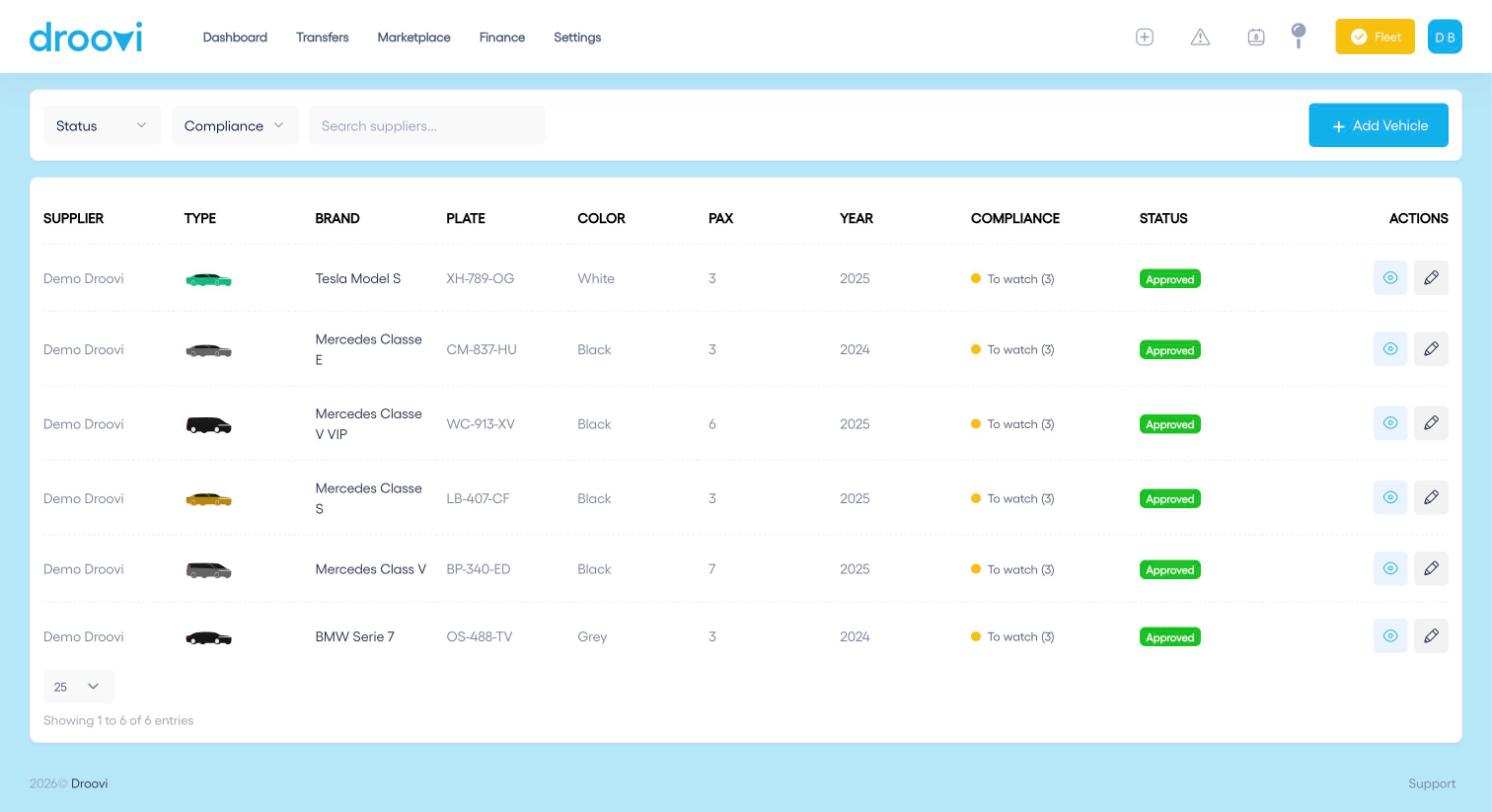
- Click "Add Vehicle".
- Enter the car type, brand, fuel type, model and licence plate.
- Fill in the colour, year, passenger and luggage capacity. All these fields are required.
- Click "Add New Vehicle".
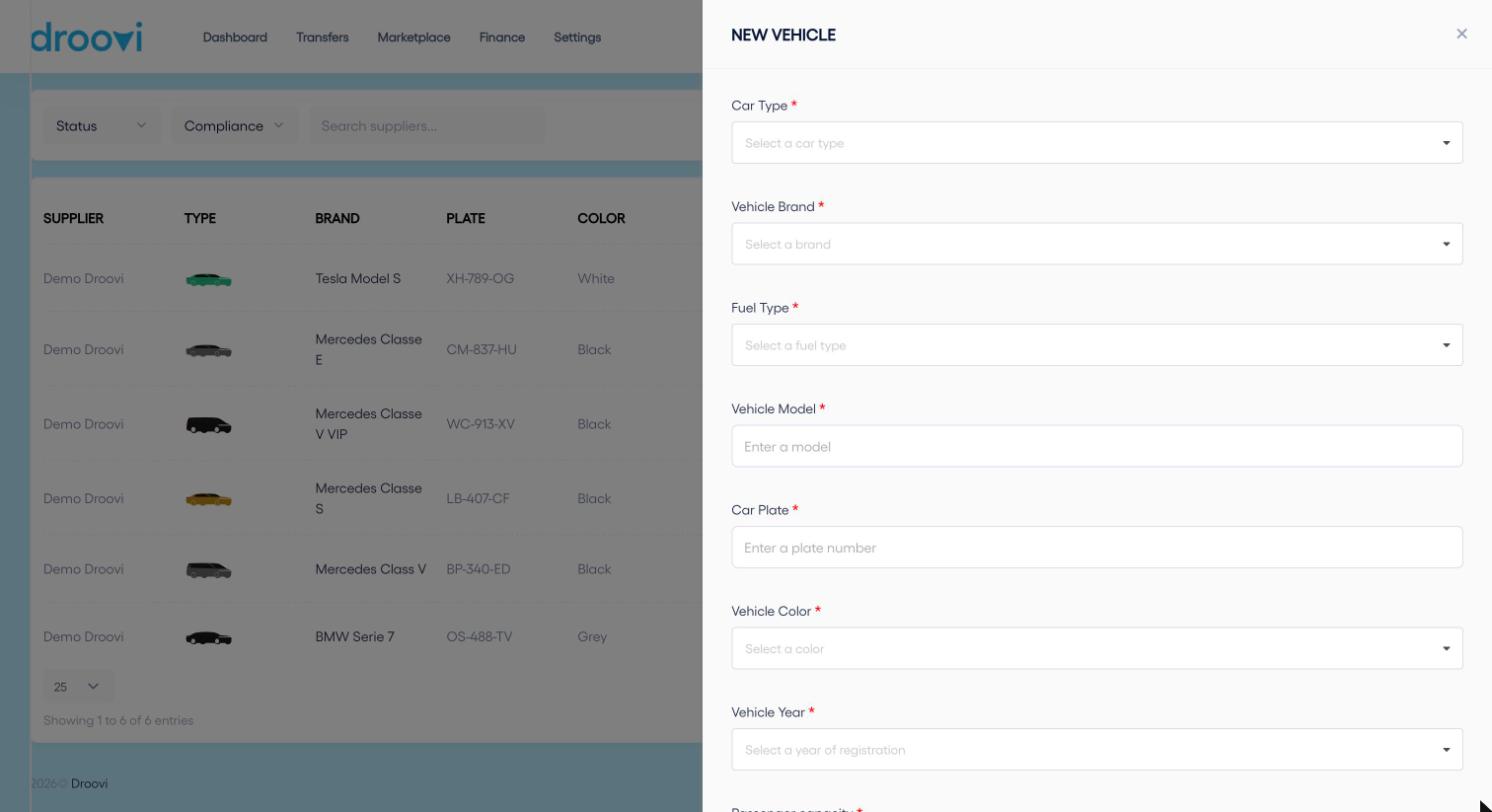
Only the vehicle types ticked in Company, Operations tab, are offered. If a type is missing, add it there.
2. Documents, maintenance and deadlines
Click the eye icon of a vehicle to open its page. It has four tabs: Documents, Maintenance, Mileage and Details. The expected documents are:
- Registration certificate
- Insurance
- Roadworthiness test
- VTC badge
- Crit'Air sticker
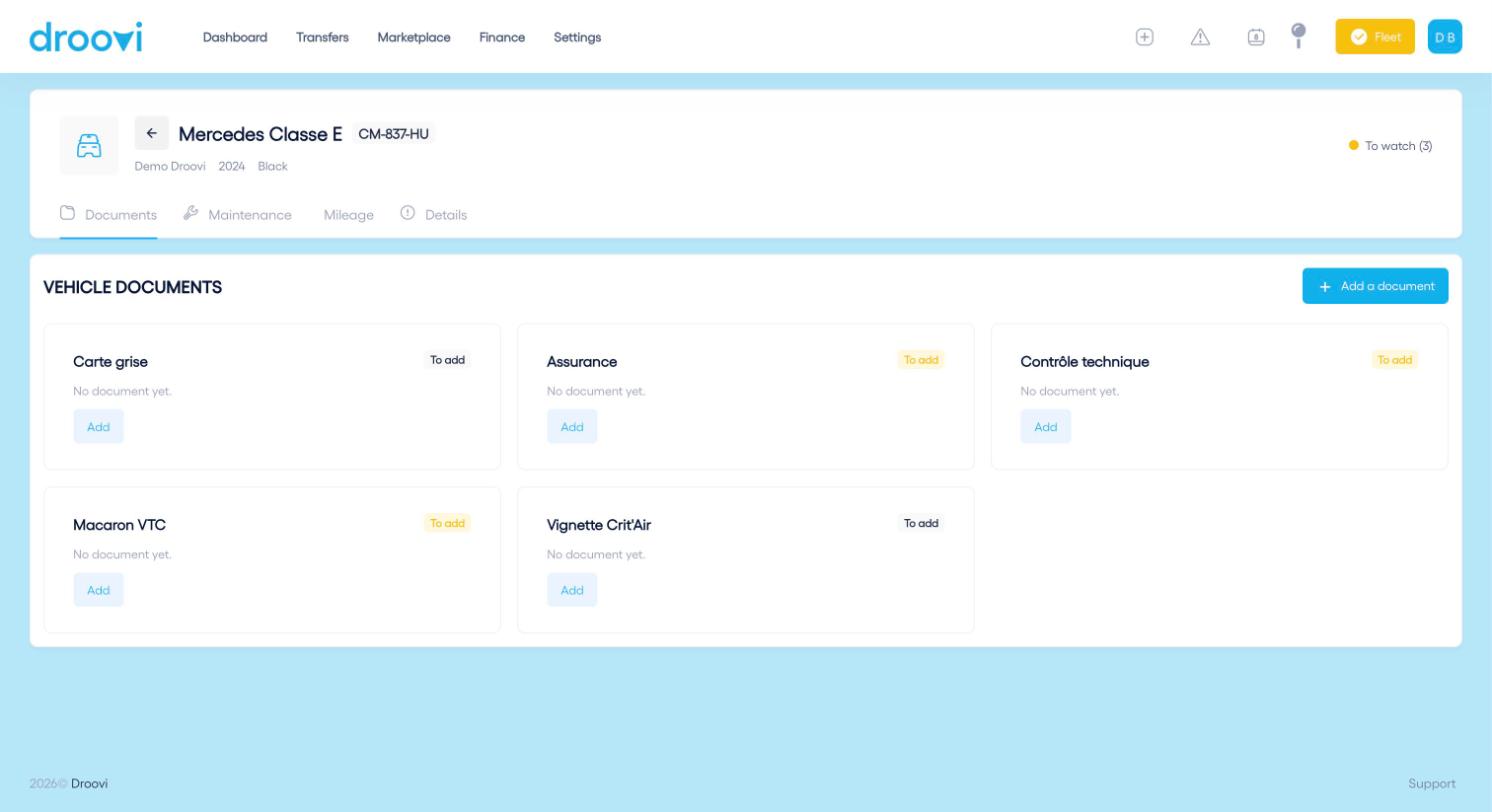
The "Compliance" column flags missing or soon-to-expire documents. The Settings page "Vehicle deadlines" lists them for the whole fleet, and managers get a daily summary at 8 am by email and notification.
3. From the mobile app
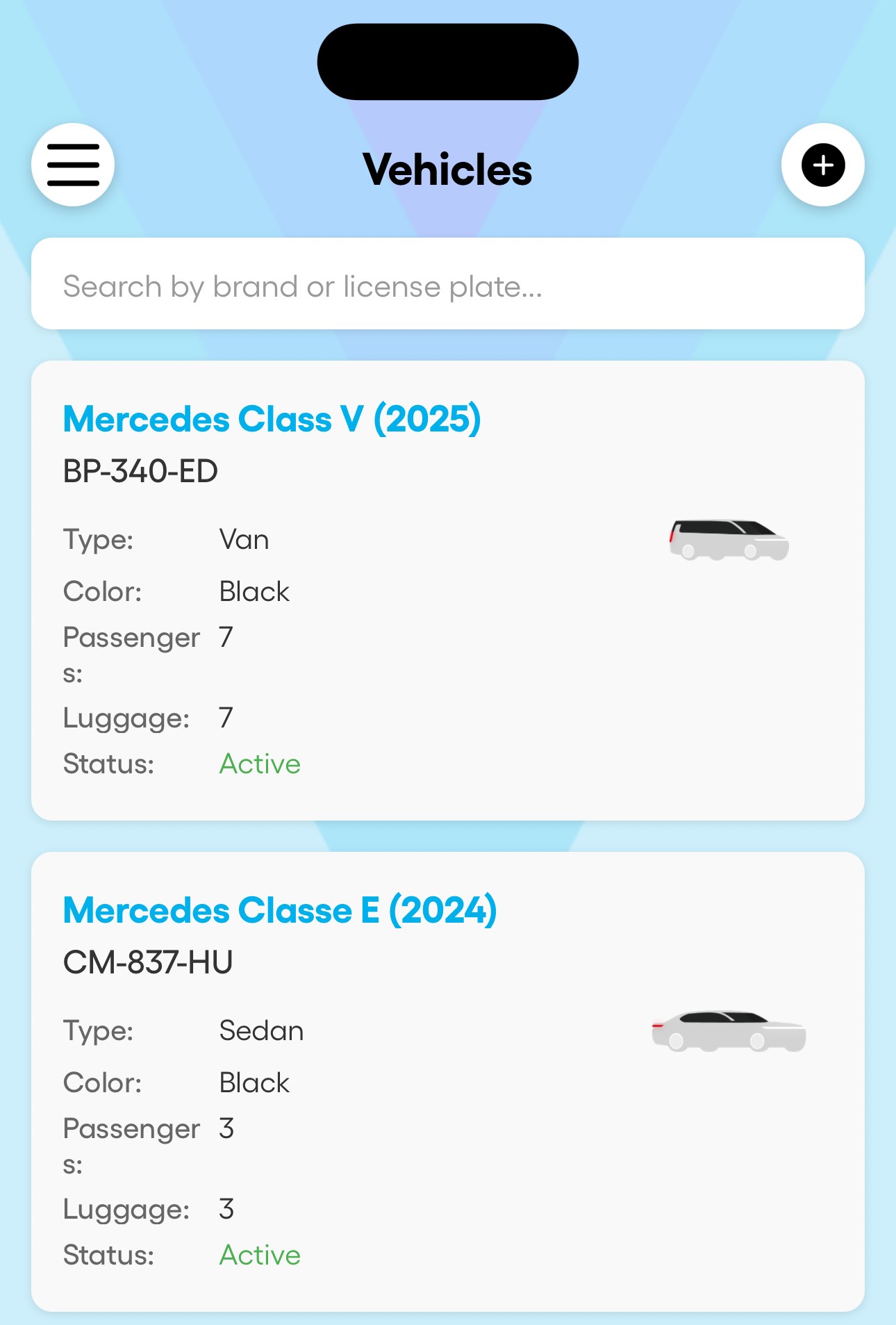
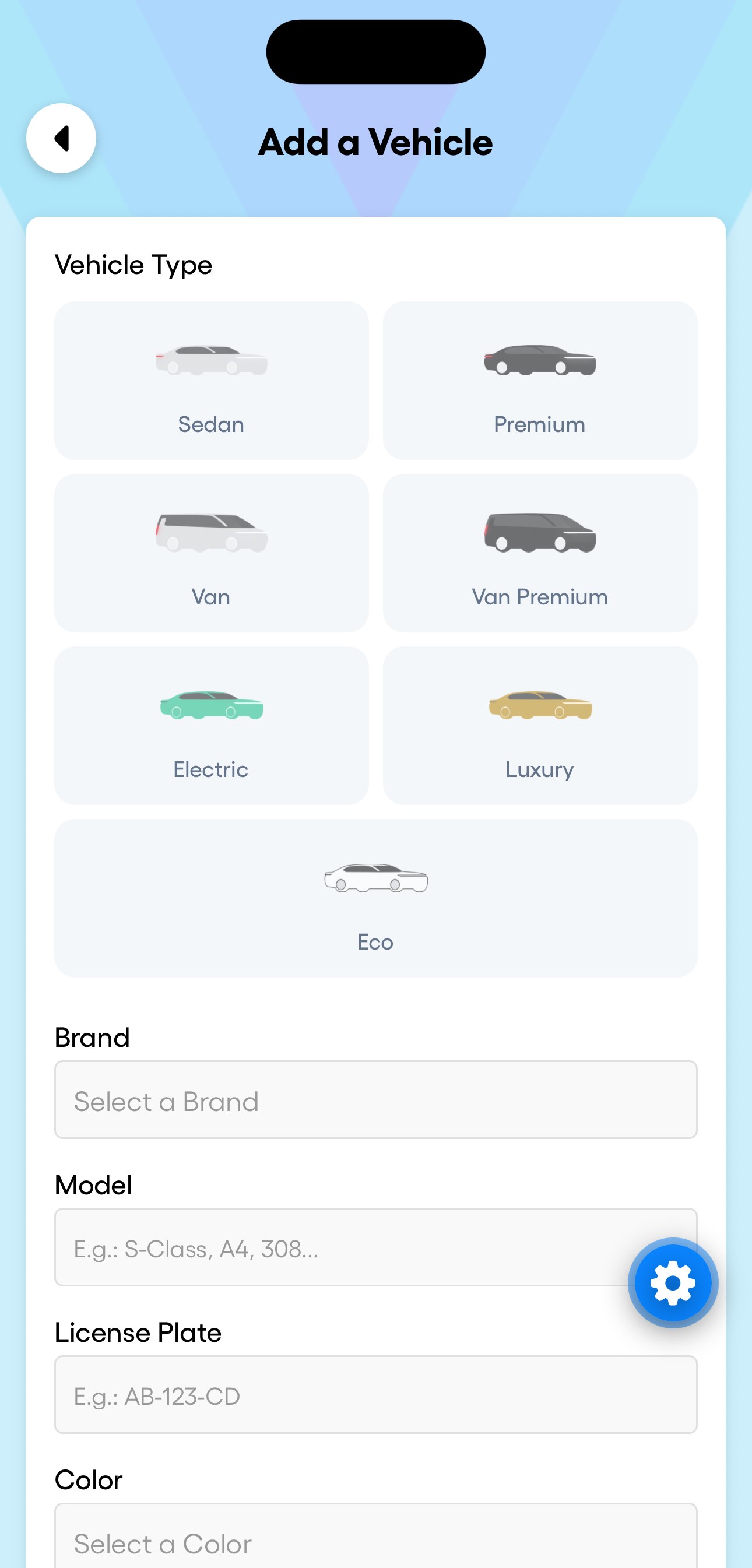
- Open the menu, then "Vehicles".
- Tap the + button in the top right corner.
- Choose the type (Sedan, Premium, Van, Van Premium, Electric, Luxury or Eco).
- Enter the brand, model, plate and colour, then tap "Create Vehicle".
4. On the driver side
In the Droovi Driver app, the driver chooses the vehicle they drive before going online, so they can switch cars from one day to the next.
The number of vehicles is not limited, whatever your plan.
Learn more Droovi fleet management Was this article helpful?