
Run a ride in the app
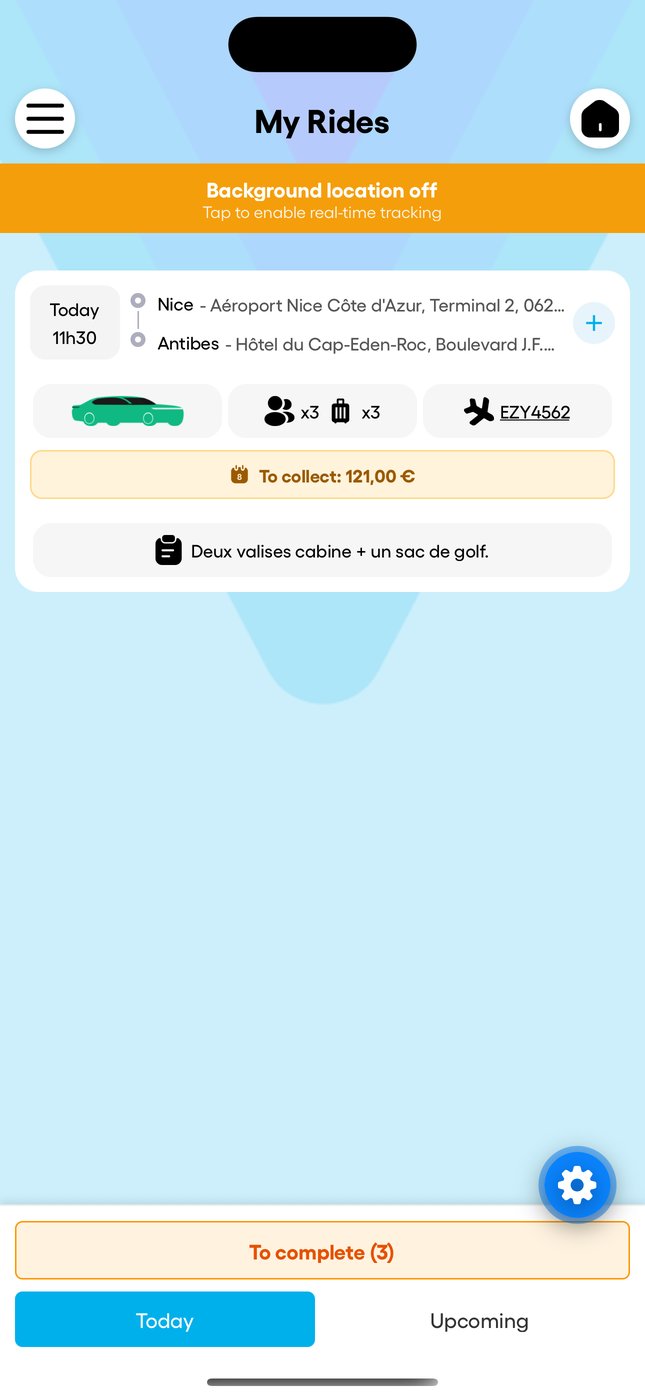
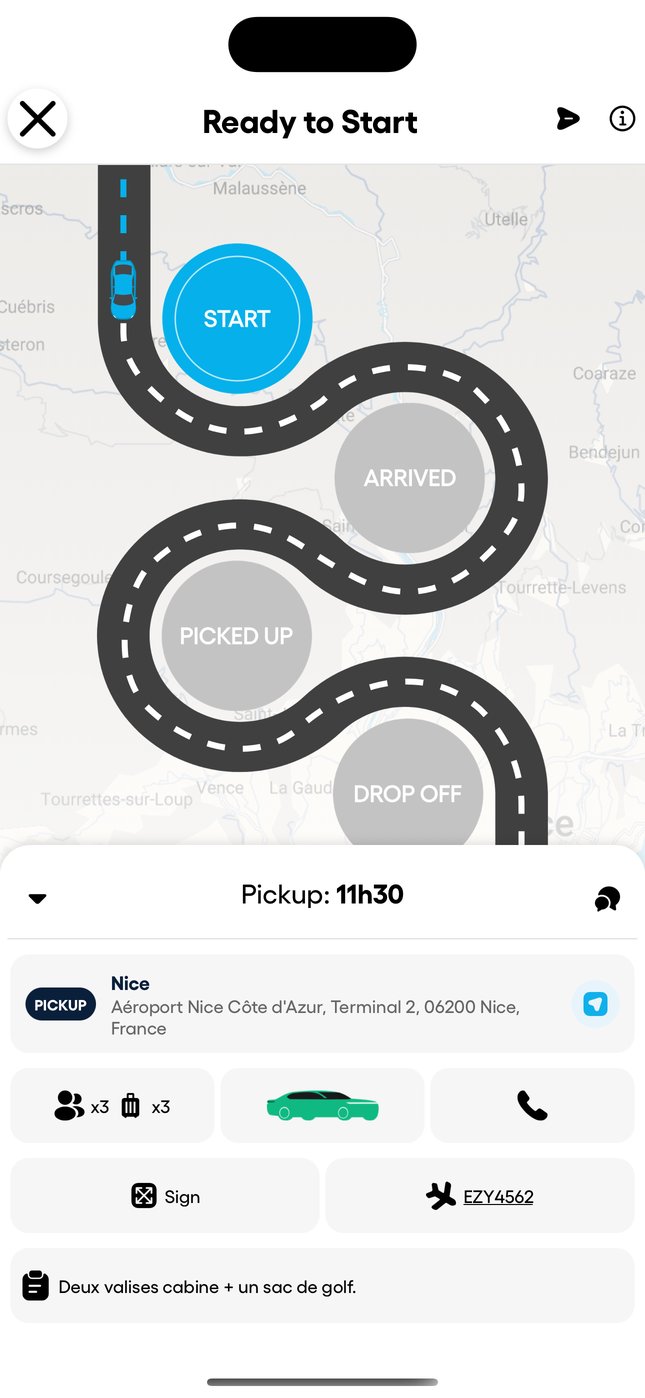
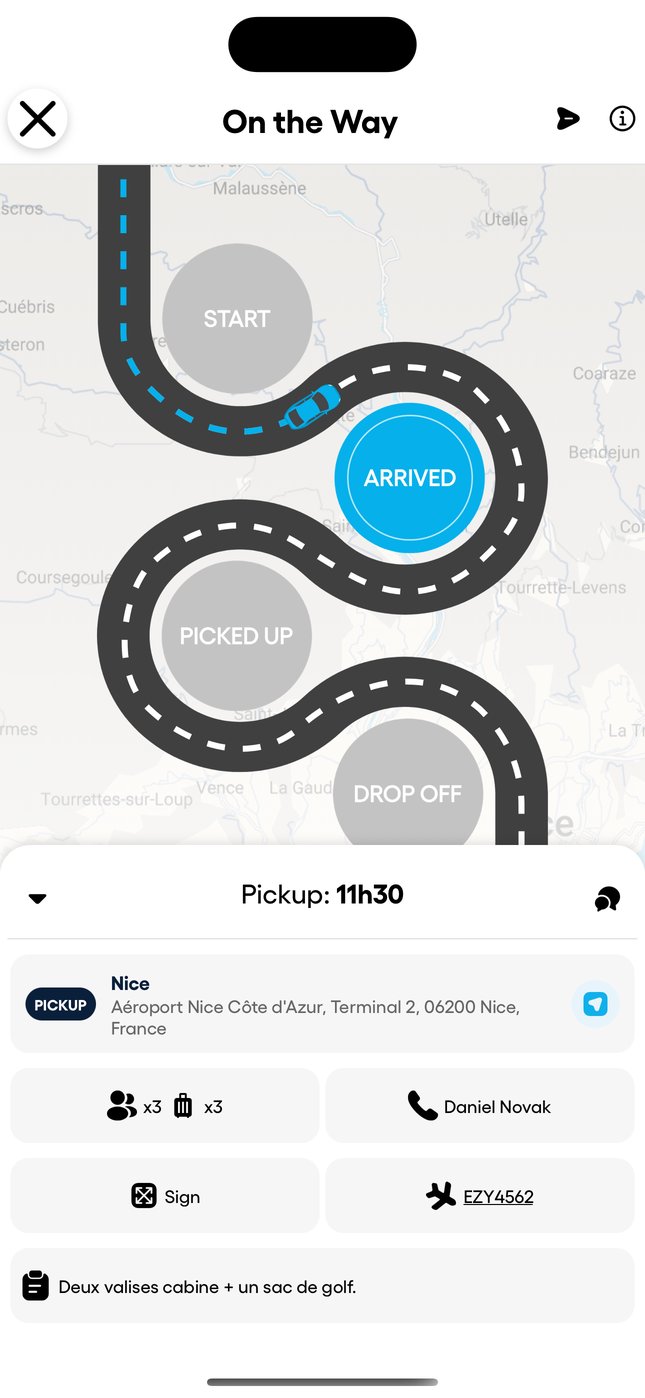
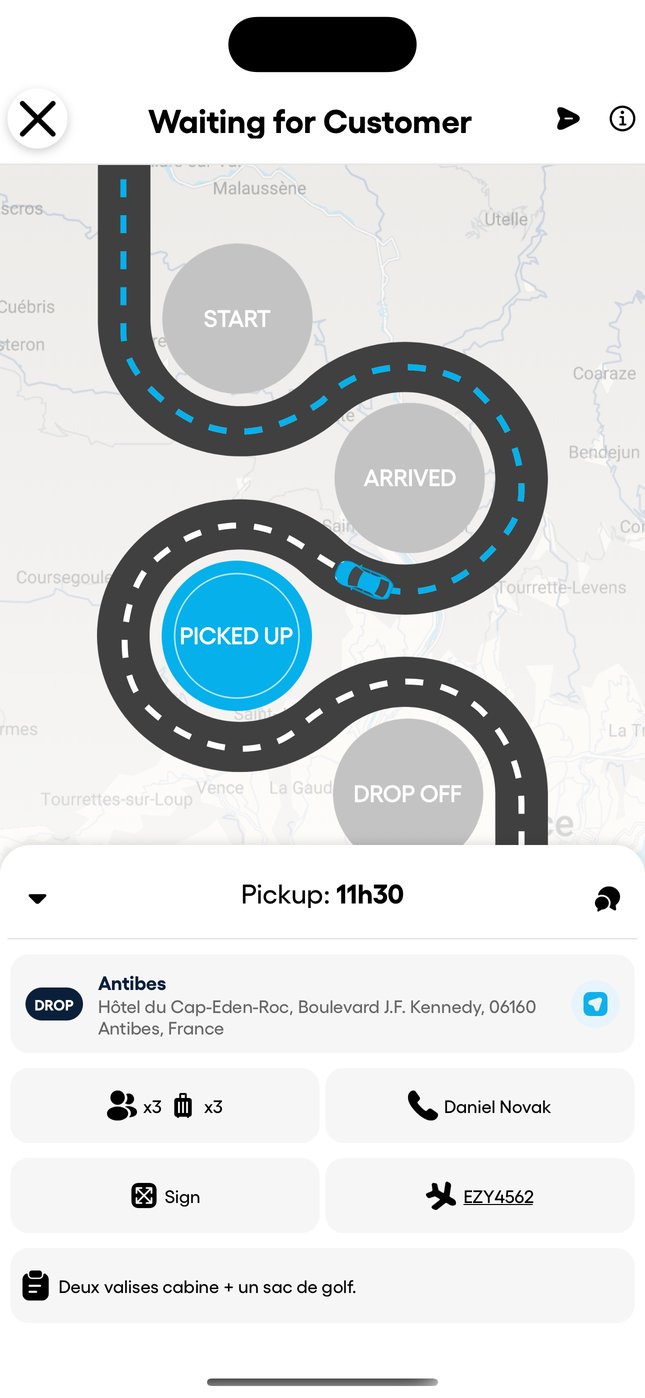
In the Droovi Driver app, the driver runs each ride in four taps: START, ARRIVED, PICKED UP and DROP OFF. Each step is time-stamped and shows up in the CRM straight away.
1. Find the ride
The "My Rides" screen lists today's rides ("Today") and the next ones ("Upcoming"), with vehicle, passengers, luggage, flight and amount to collect. Tap a ride to open it. If the orange banner shows, turn on background location: it is what lets you track the driver in real time.
2. The four steps
- START: the driver heads to the pickup. The ride becomes "On the Way".
- ARRIVED: they are on site. The ride becomes "Waiting for Customer".
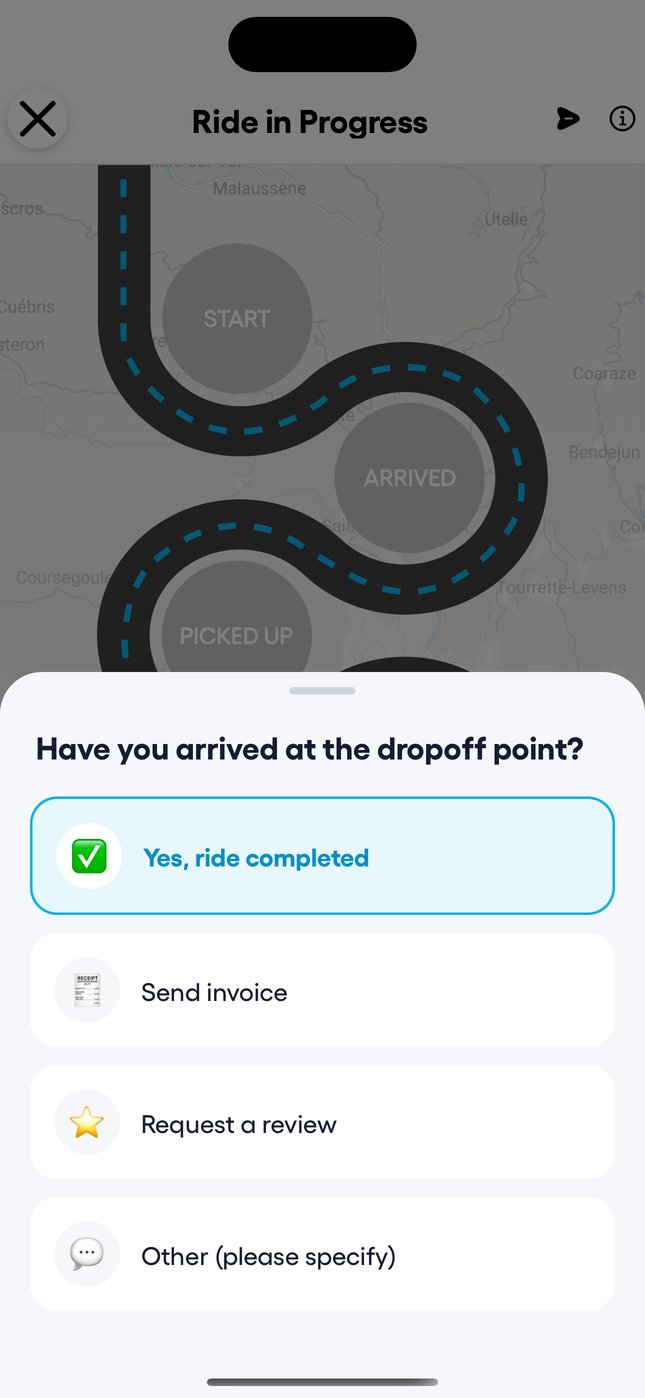
- PICKED UP: the customer is on board. The ride becomes "Ride in Progress", with the estimated arrival time.
- DROP OFF: the customer is dropped off, the ride is done.
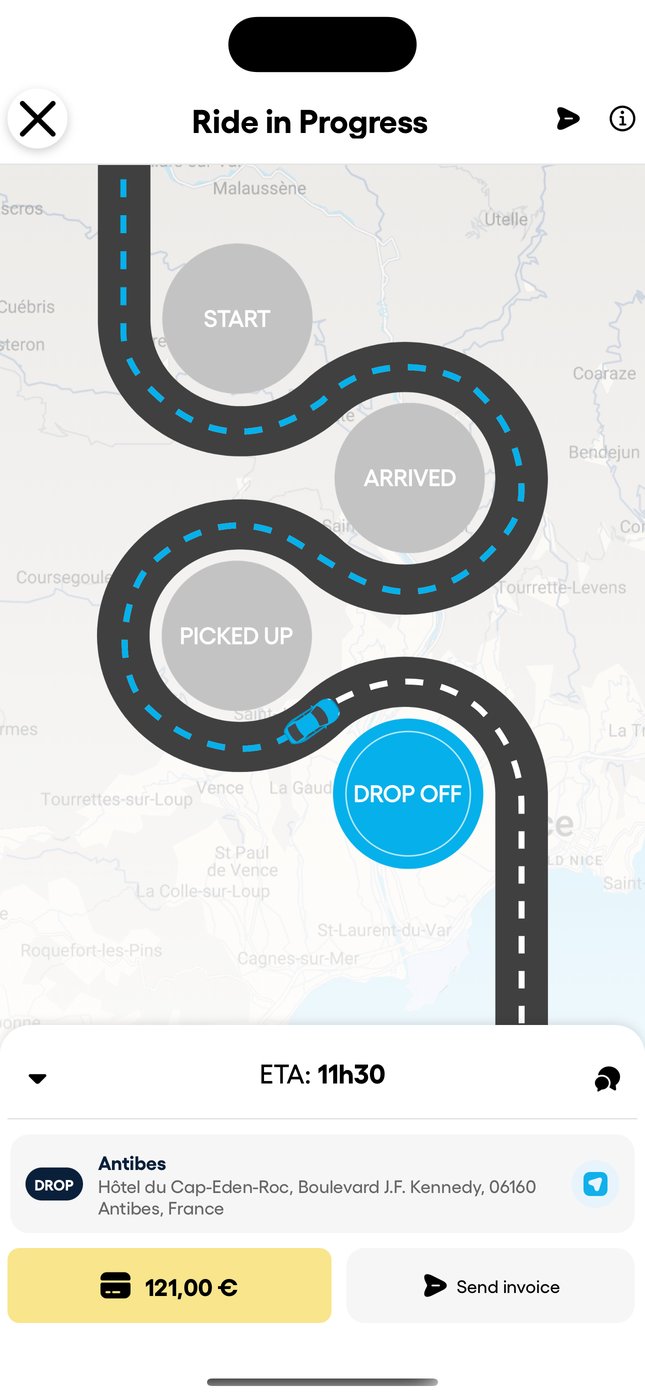
During the ride
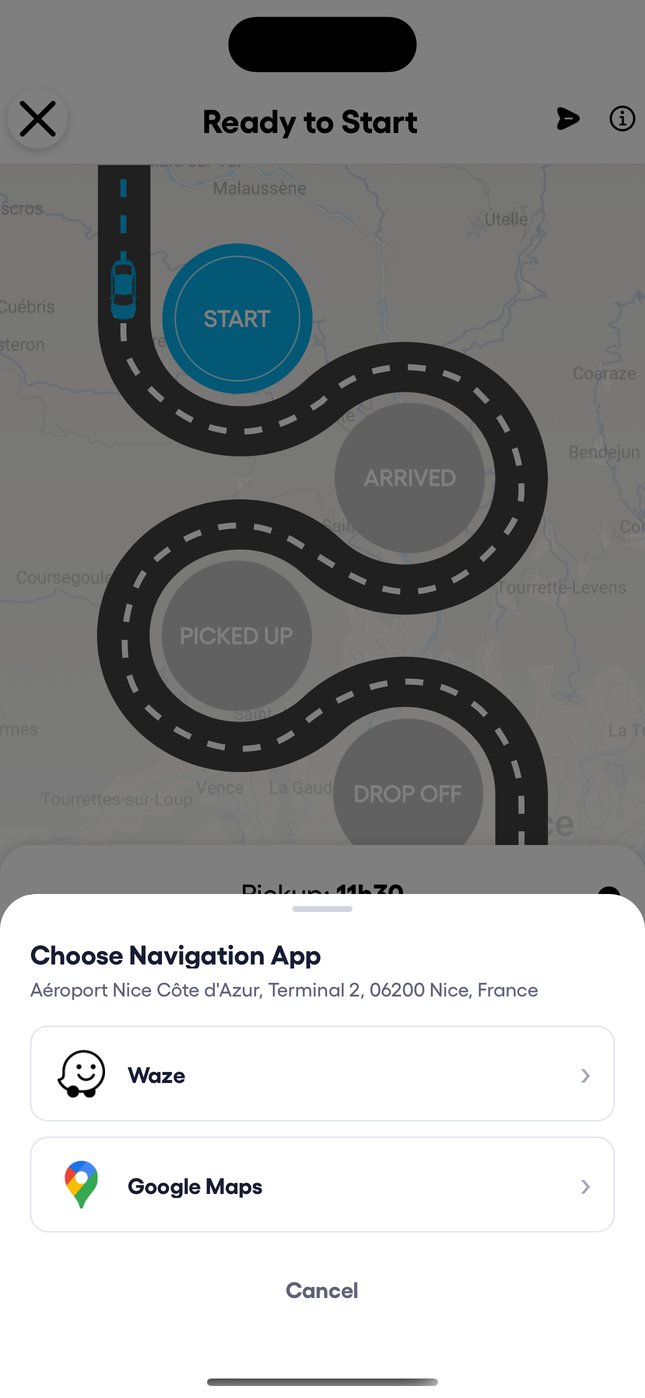
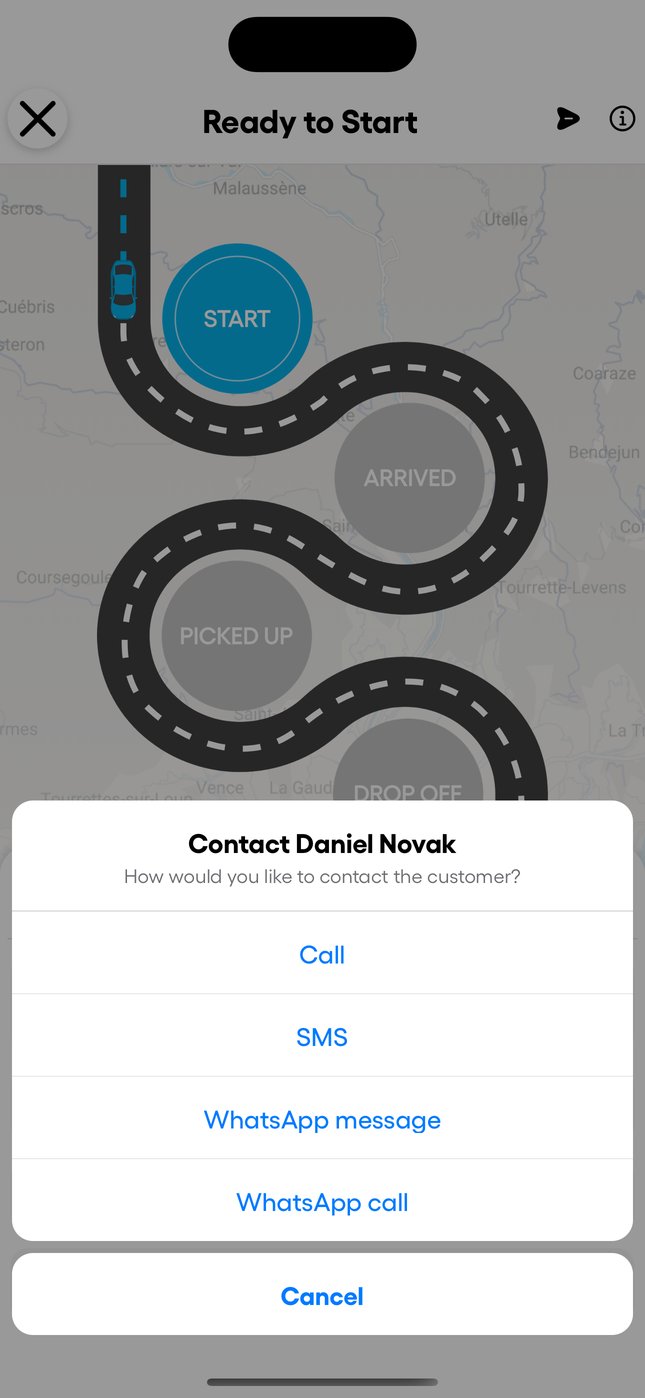
Below the map, the card shows the address, passengers, luggage, flight and the customer's note. The navigation button opens Waze or Google Maps. The phone button lets the driver call the customer, text them or use WhatsApp. "Sign" shows the customer's name in large type to hold up at arrivals.
3. Finish the ride
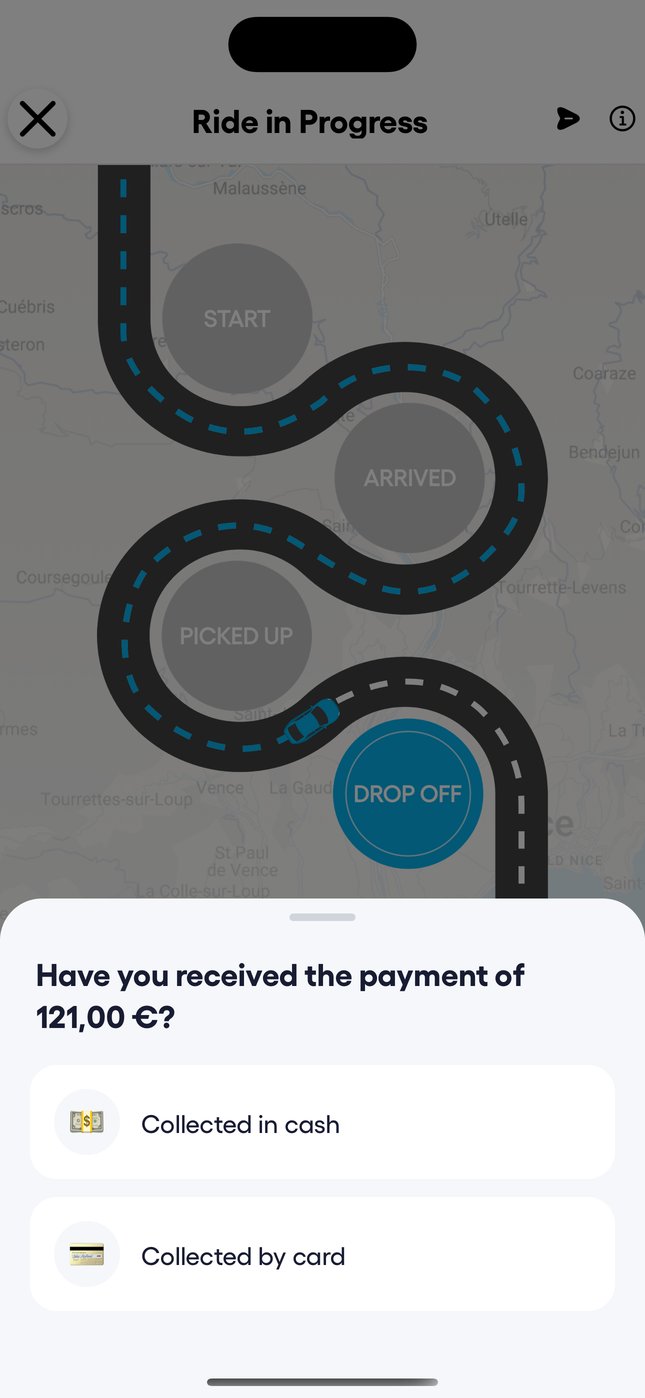
- At DROP OFF, if there is an amount to collect, the app asks how it was paid: cash or card.
- The driver then confirms "Yes, ride completed".
- Depending on your settings, they can also email the invoice to the passenger or request a review.
4. If something goes wrong
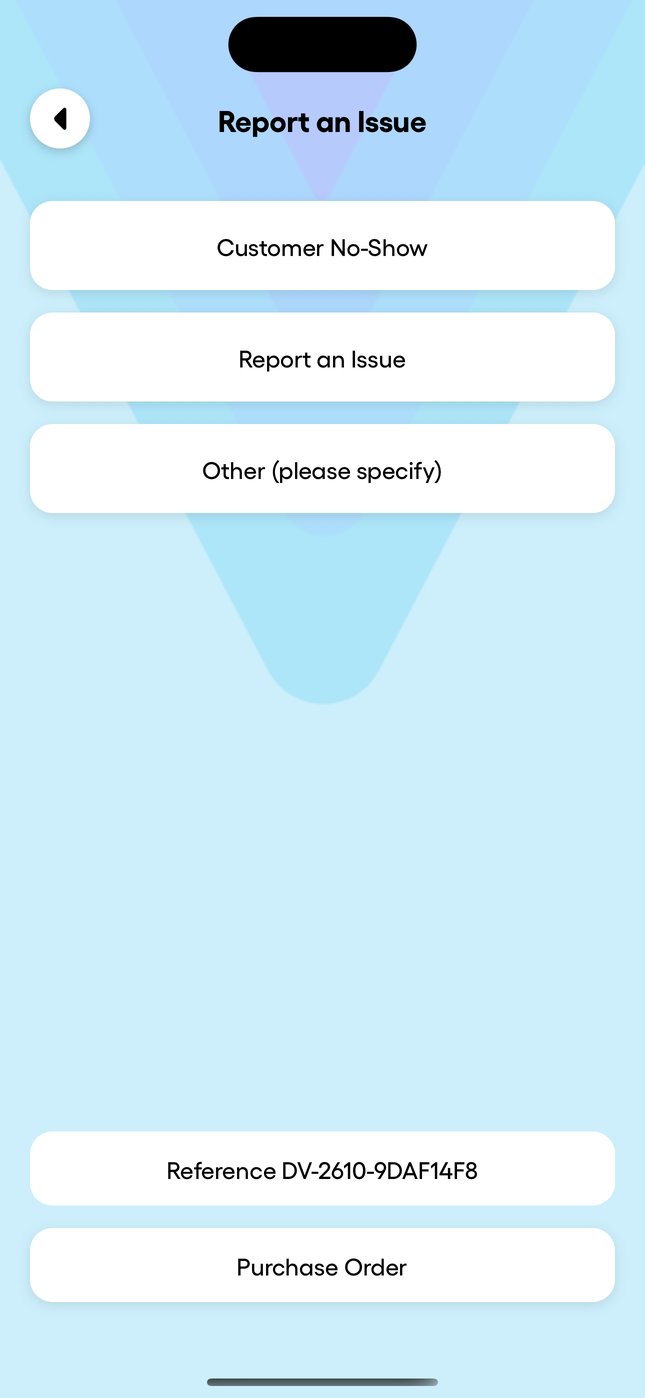
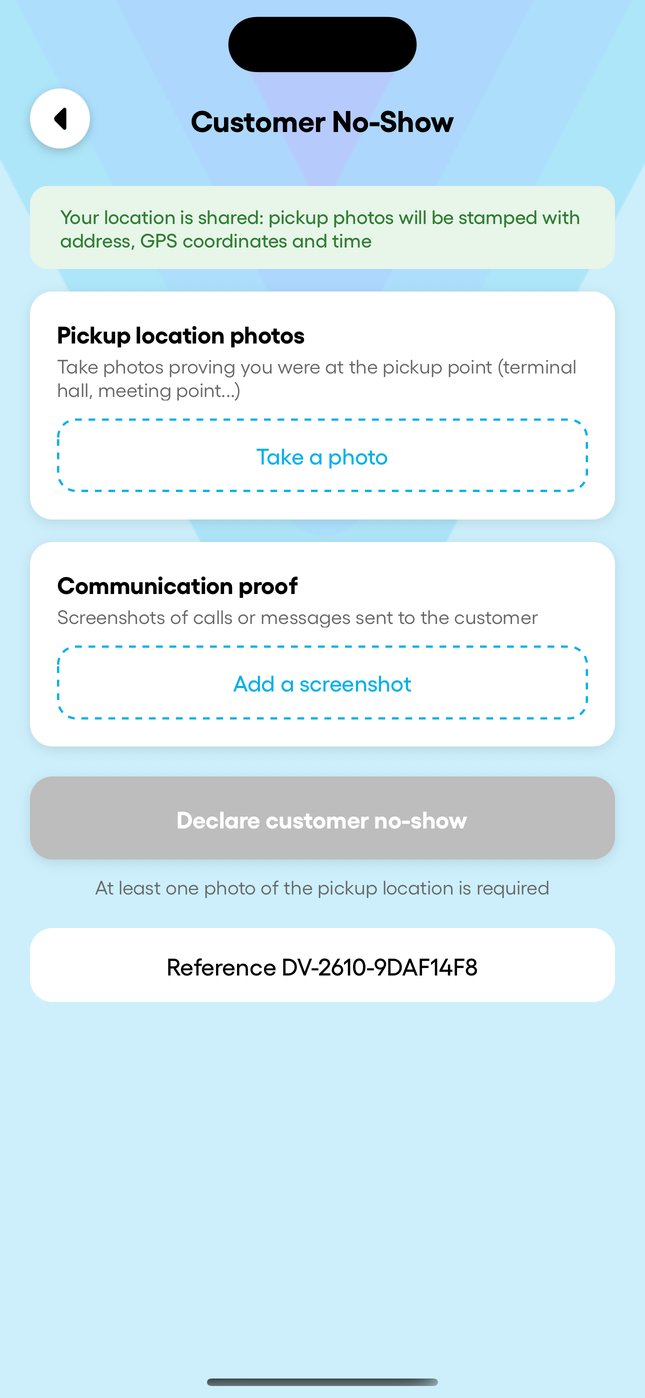
The (i) button at the top right opens "Report an Issue": customer no-show, another issue or a free message. For a no-show, at least one photo of the pickup location is required; it is stamped with the address, GPS position and time. The driver can add screenshots of calls or messages to the customer.
The purchase order
From the same screen, "Purchase Order" shows the advance booking record that inspectors may ask for in France: company, licence, passenger, pickup and destination.