Create a price grid
Each client has their own prices? You enter them once in Droovi, and the price shows up by itself when you create a ride.
How Droovi works out the price
- The client's grid: the routes priced for them win over everything else.
- Your default routes: entered once, valid for all your clients.
- Your per-km rate: when no route covers the trip.
If none of these three steps applies, the price is entered by hand on the ride. Surcharges are added last, whichever step produced the price. A route works both ways: Nice → Cannes also prices Cannes → Nice.
1. Your default routes
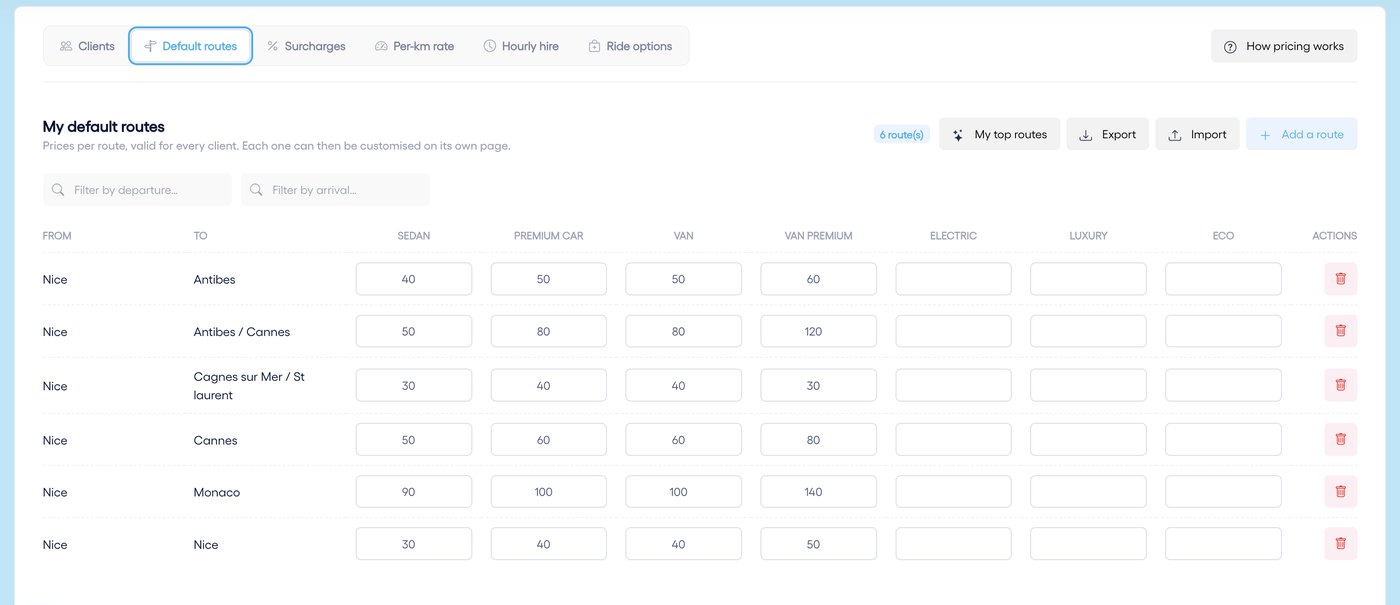
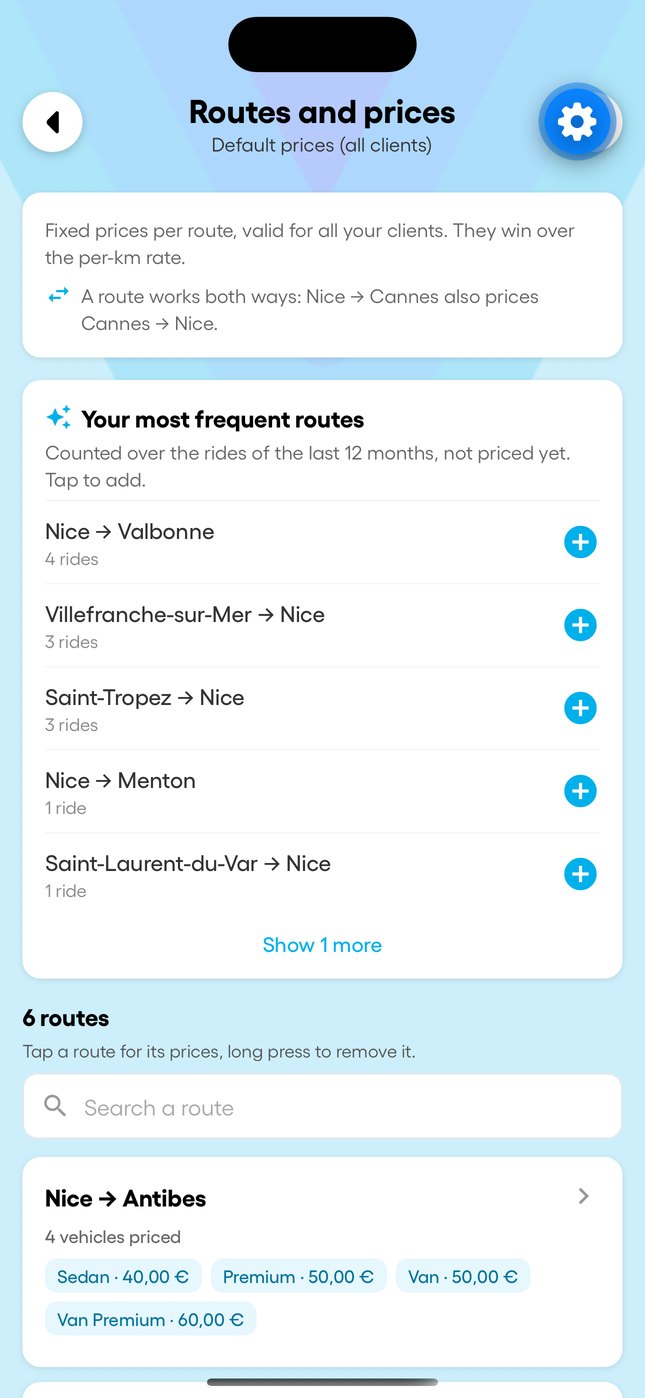
- "Default routes" tab, then "Add a route": departure, arrival and a price per vehicle type.
- "My top routes" suggests your most frequent trips of the last 12 months that have no price yet.
- "Import" and "Export": the whole grid as a CSV or Excel file.
2. A client's grid
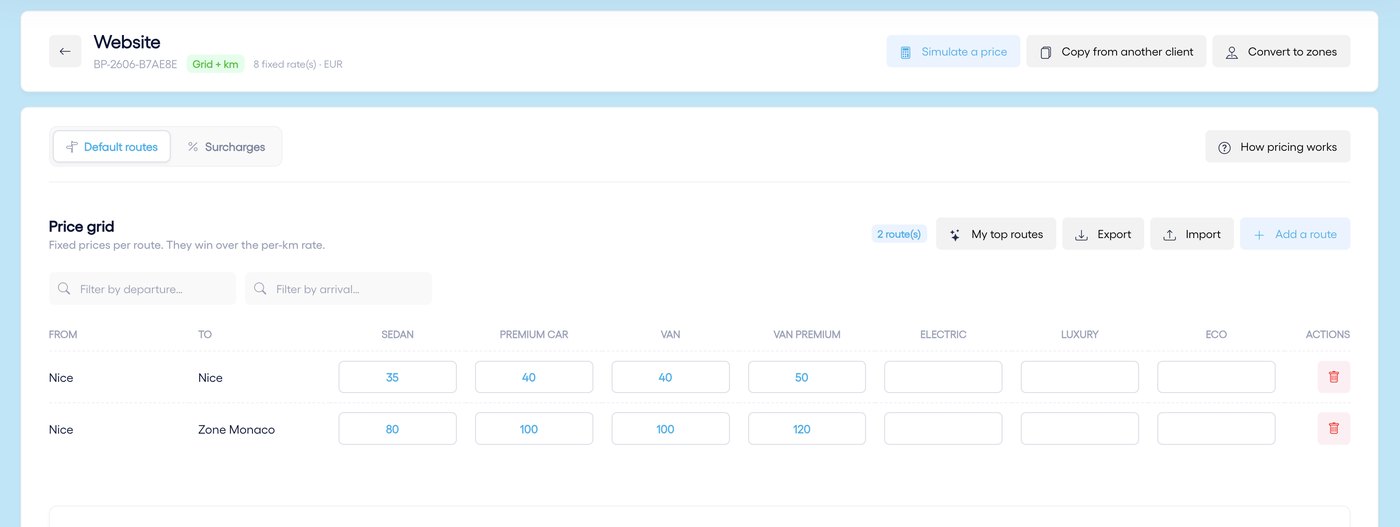
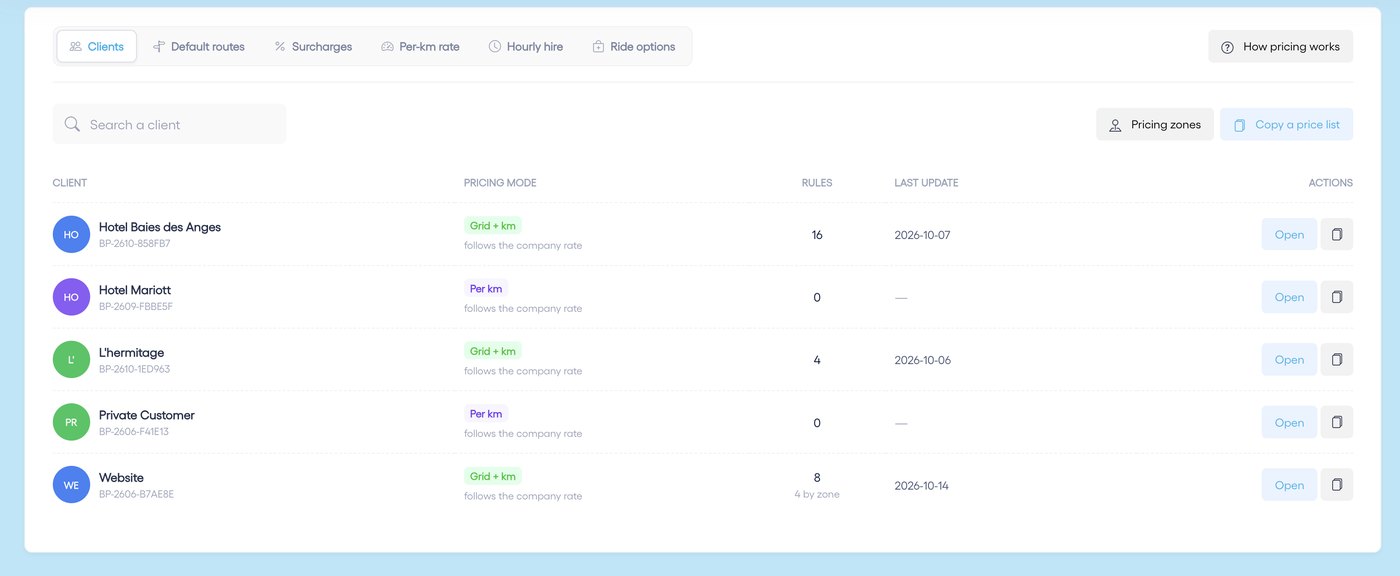
- In the Clients tab, click "Open" next to the client.
- Add their routes or change a default price: the route then becomes specific to that client.
- "Copy from another client" reuses an existing grid, and "Simulate a price" checks the price of a trip.
3. The per-km rate
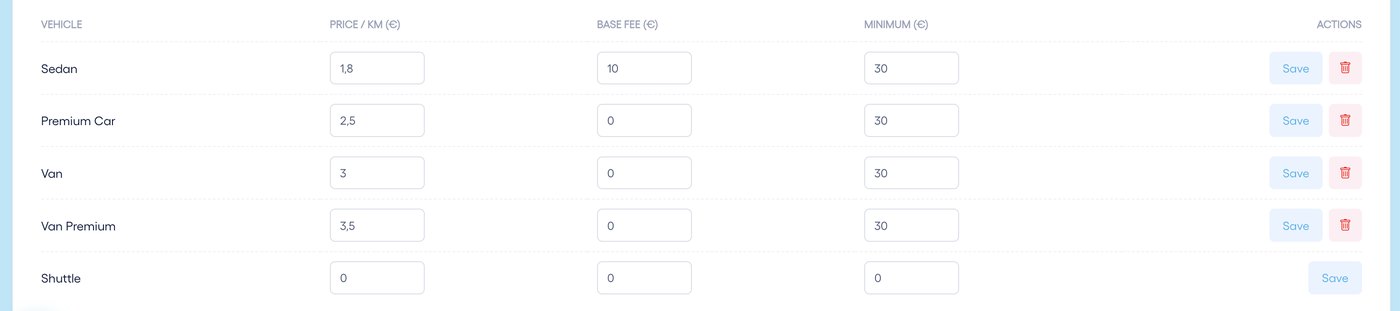
It takes over when no route covers the trip. Price = base fee + price per km × road distance, with the minimum as a floor: no ride is sold below it. Leave all three fields at 0 for a vehicle you do not sell per km.
4. Surcharges
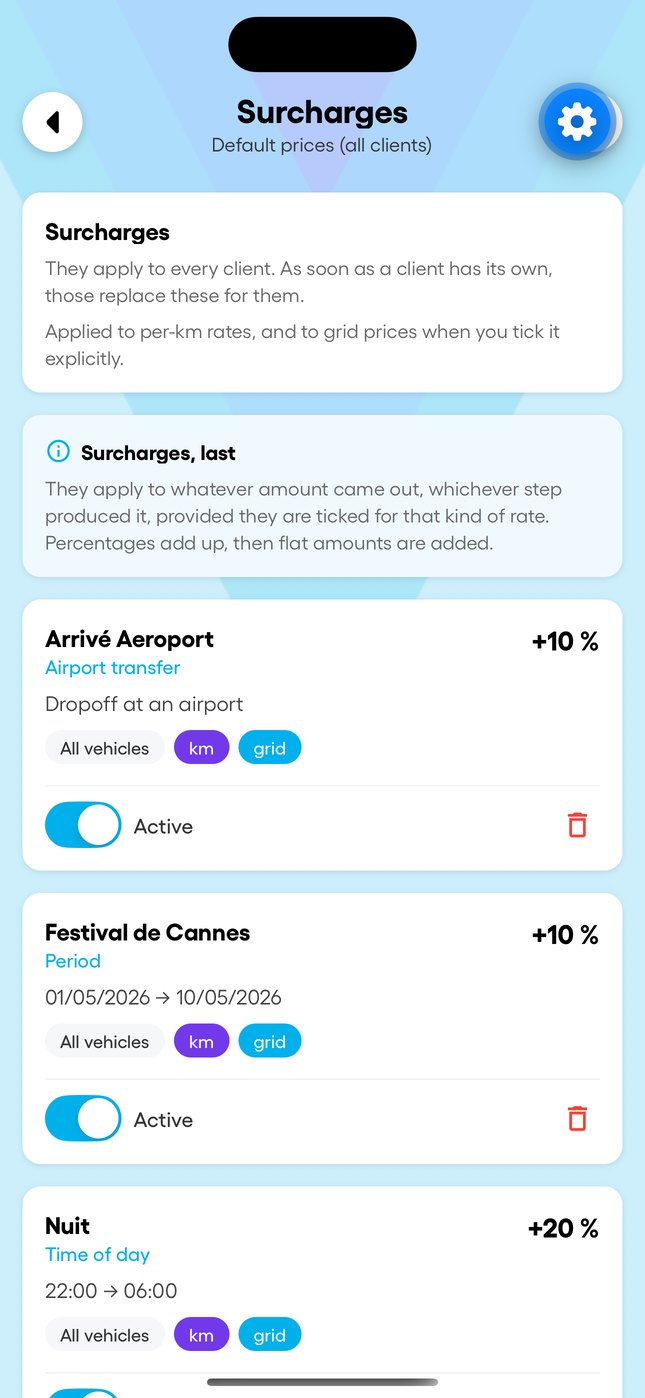
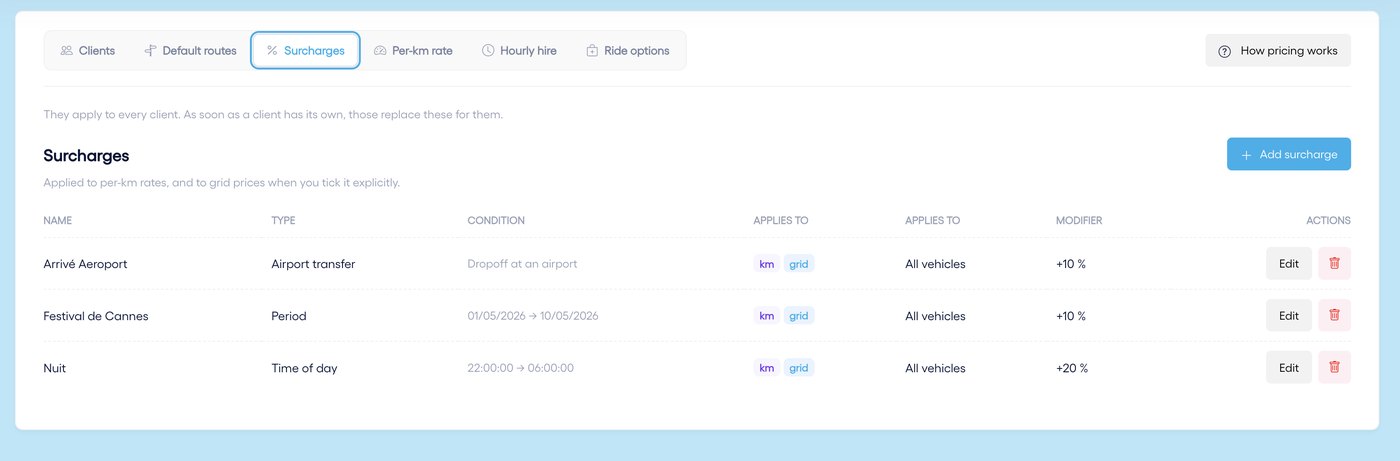
Airport drop-off, a period (Cannes Film Festival), night, days of the week… For each one, you choose whether it applies to the per-km rate, the grid, or both. Percentages add up, then flat amounts are added. A client can have their own surcharges: they then replace yours for that client.
5. Zones
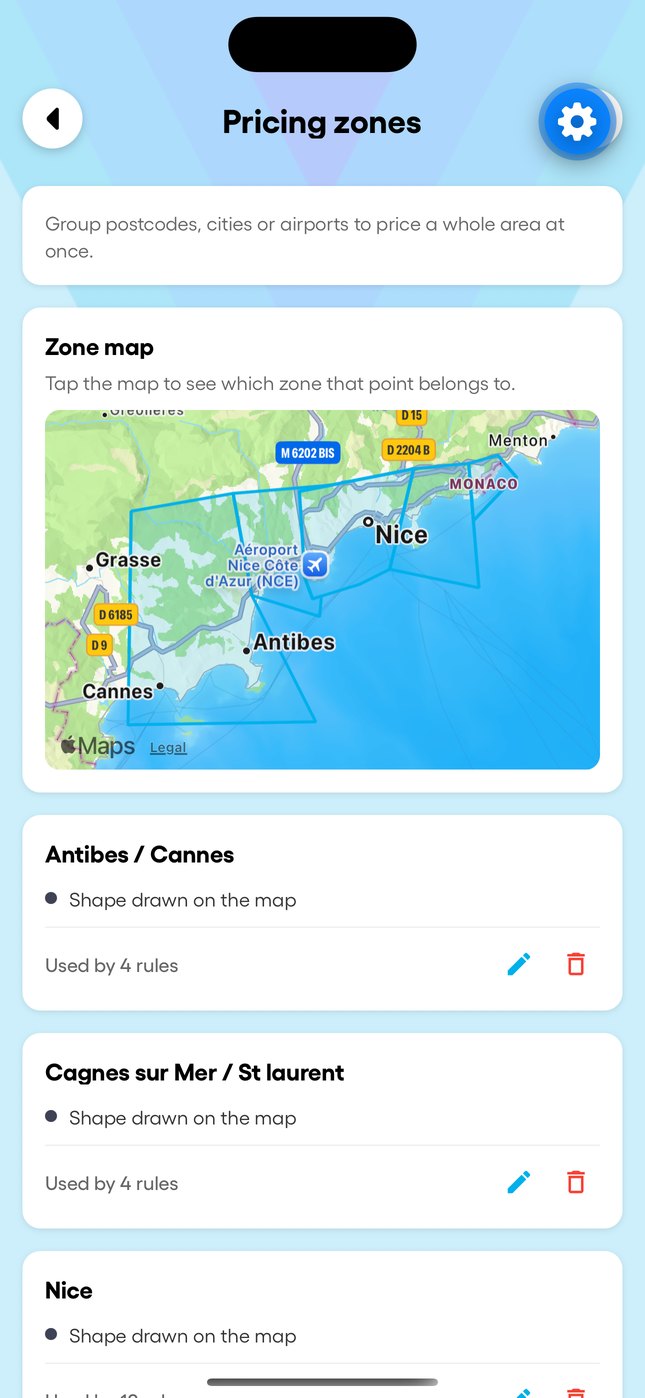
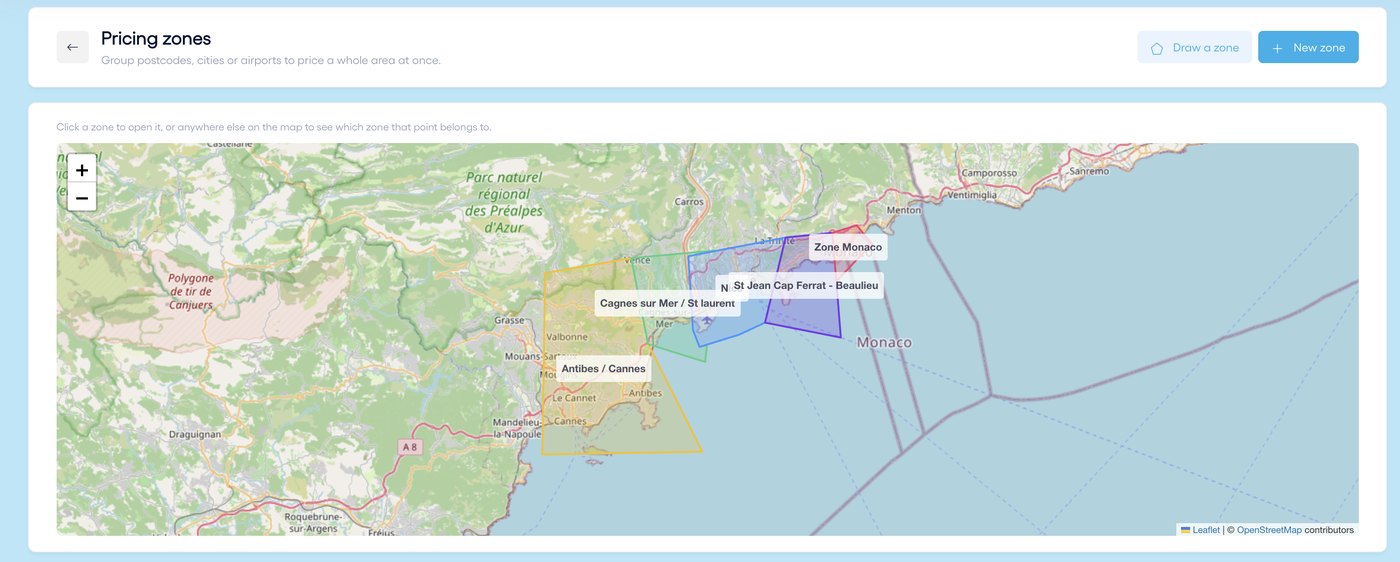
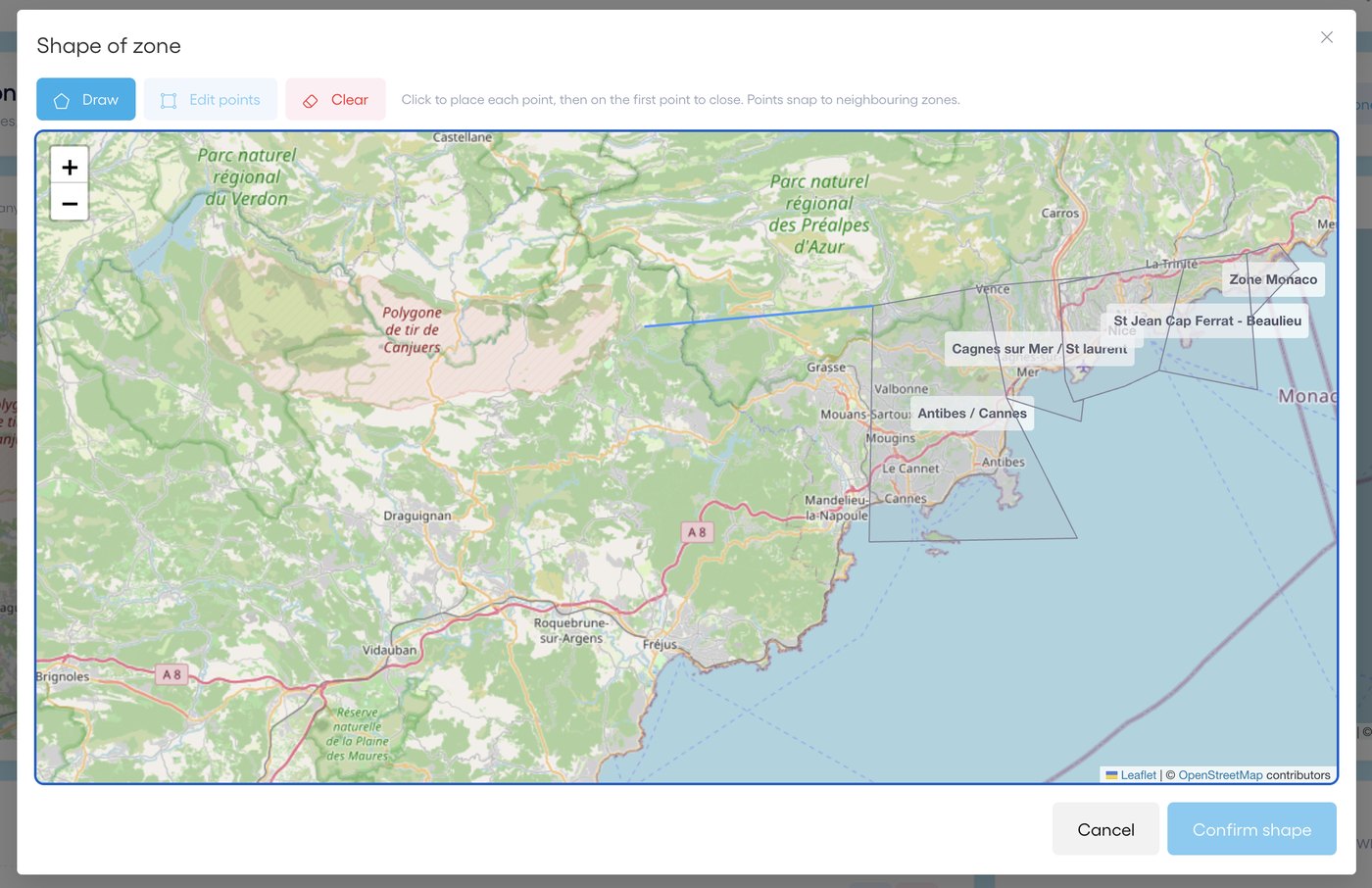
Rather than pricing each address, group them into zones: postcodes, cities, an airport, or a shape drawn on the map. Zones never overlap: if your shape spills over a neighbour, Droovi trims it. Any address inside a zone takes the price of its routes, for example Nice → Zone Monaco. In a grid, zone routes come before city routes.
6. Hourly hire and options
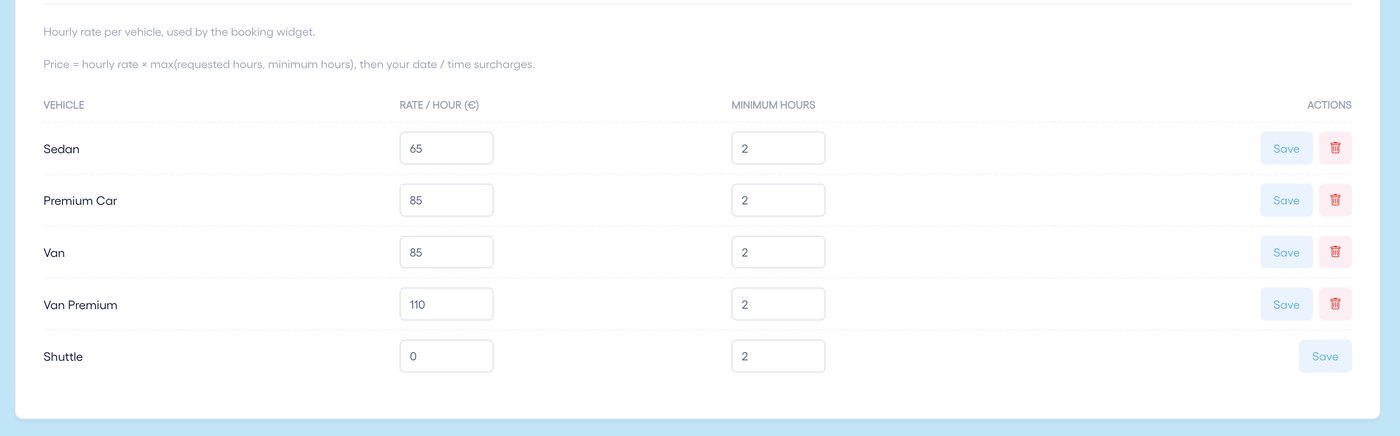
The hourly rate is used for hourly hire: rate × number of hours (at least the minimum), then your surcharges. The Ride options tab sets the price of your paid options, such as a baby seat or a meet & greet sign.
7. From the mobile app
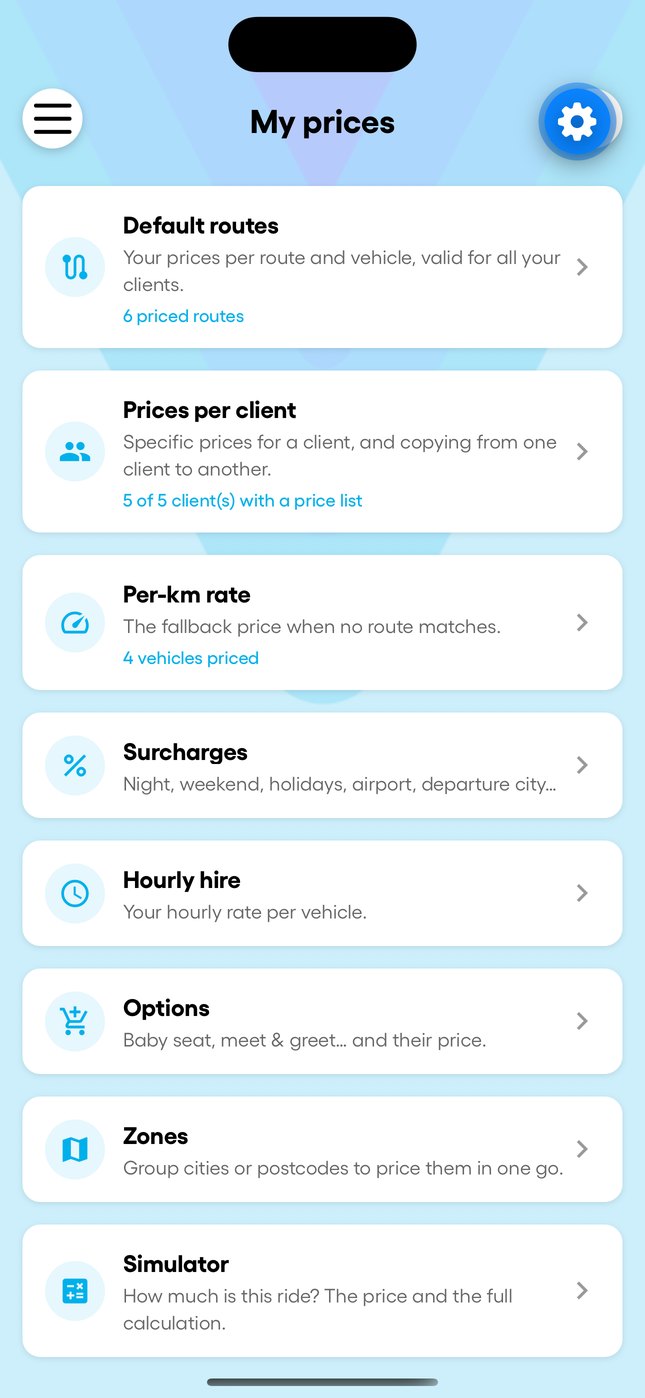
The "My prices" menu has the same settings: default routes, prices per client, per-km rate, surcharges, hourly hire, options, zones and a price simulator.