
Create a booking manually
A booking received by phone, WhatsApp or email takes a minute to enter. The form fits on one page, with a live preview on the right: route map, date, vehicle, number of passengers and estimated price.
Open the Transfers menu, then click "Add Ride".
1. Client and passenger
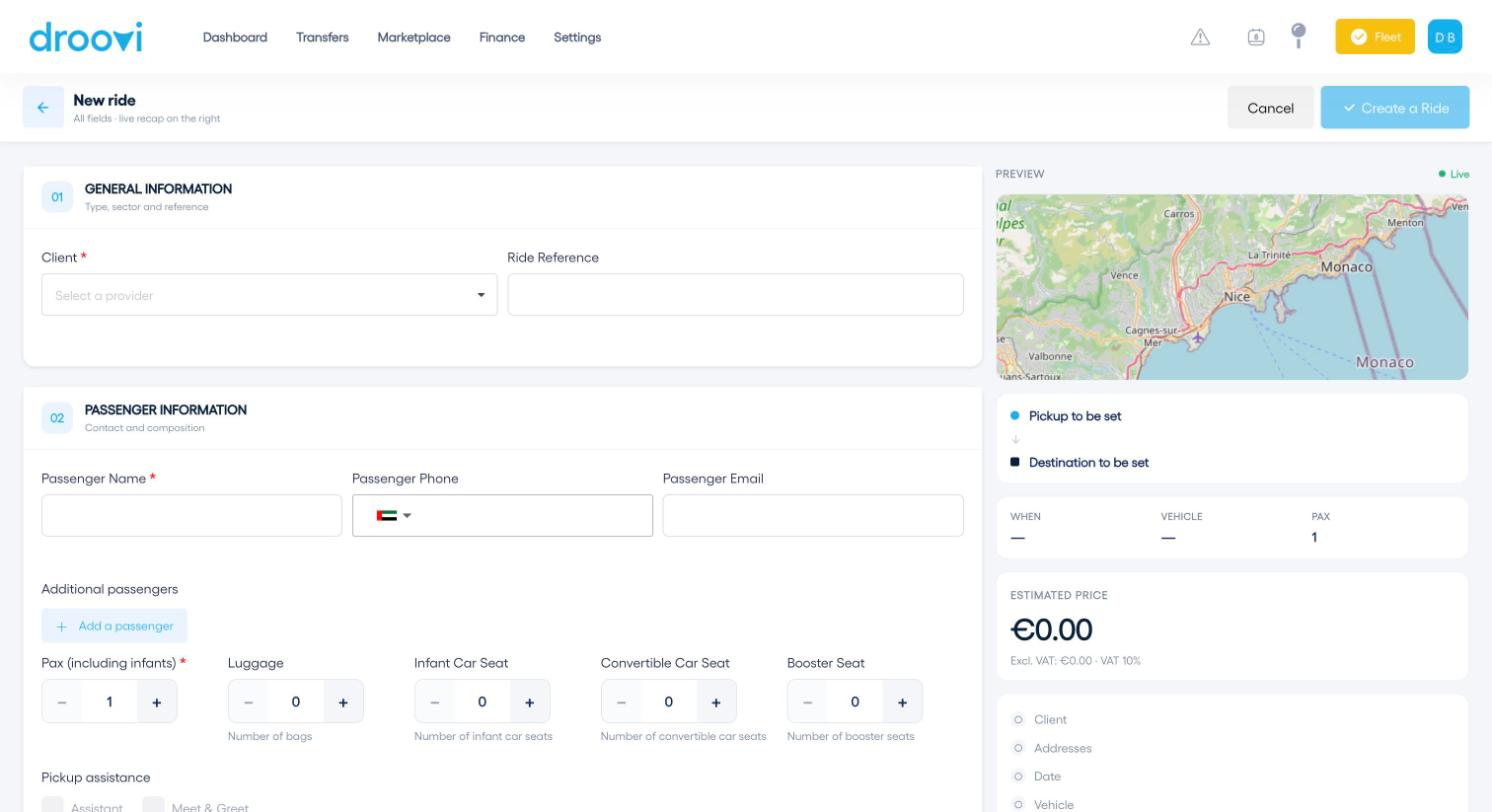
- Client: choose the account to invoice (agency, hotel, private customer…). You can add your own ride reference.
- Passenger: name (required), phone and email. "Add a passenger" lets you enter several.
- Party: number of passengers, luggage, infant seats, convertible seats and boosters, plus pickup assistance if needed (Assistant or Meet & Greet).
2. The route
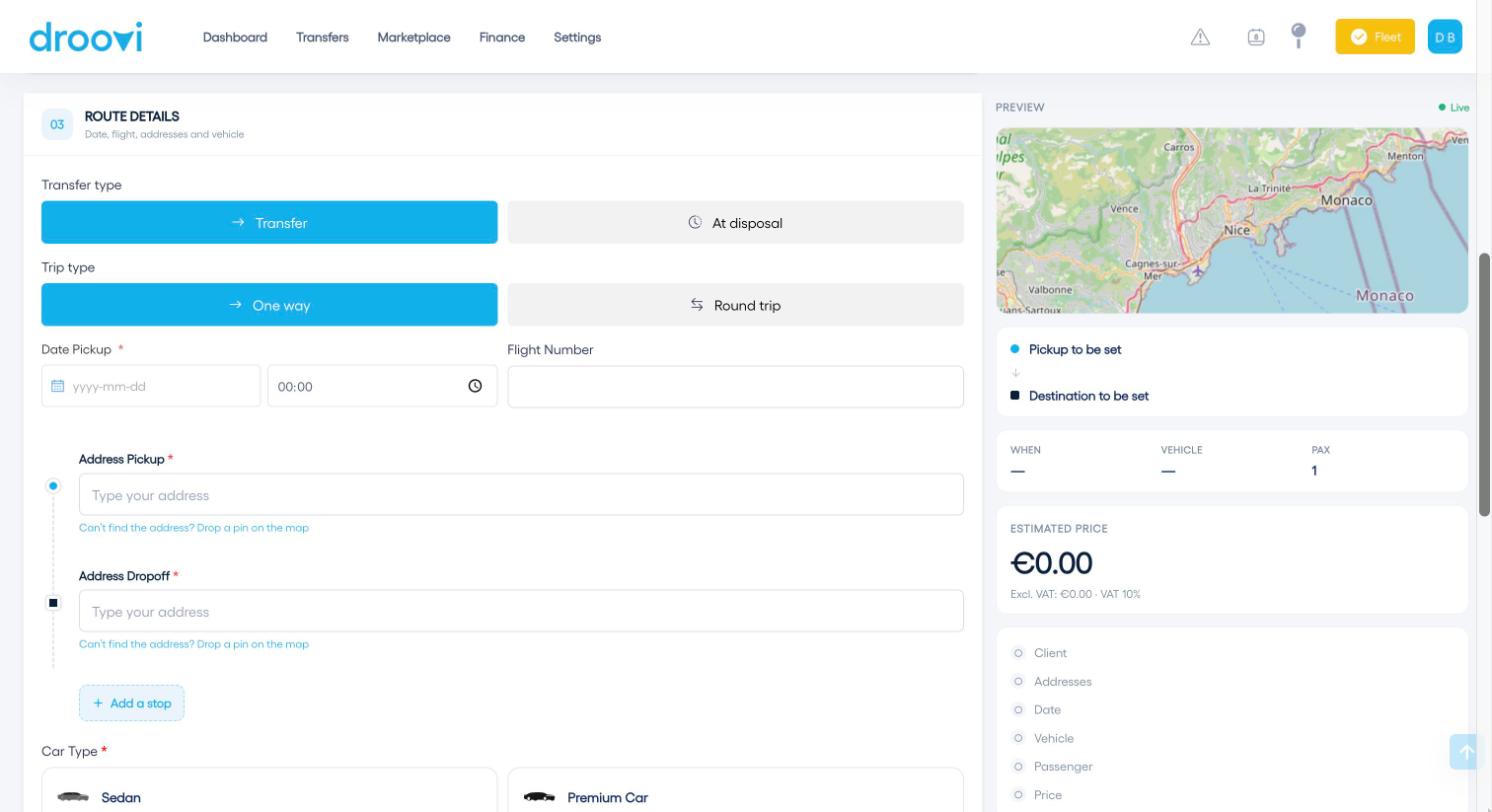
- Choose Transfer or At disposal, then One way or Round trip.
- Enter the pickup date and time. For an airport, add the flight number: the time will follow delays.
- Enter the pickup and drop-off addresses. Add stops if needed; if an address cannot be found, drop a pin on the map.
- Choose the car type.
3. Payment and dispatch
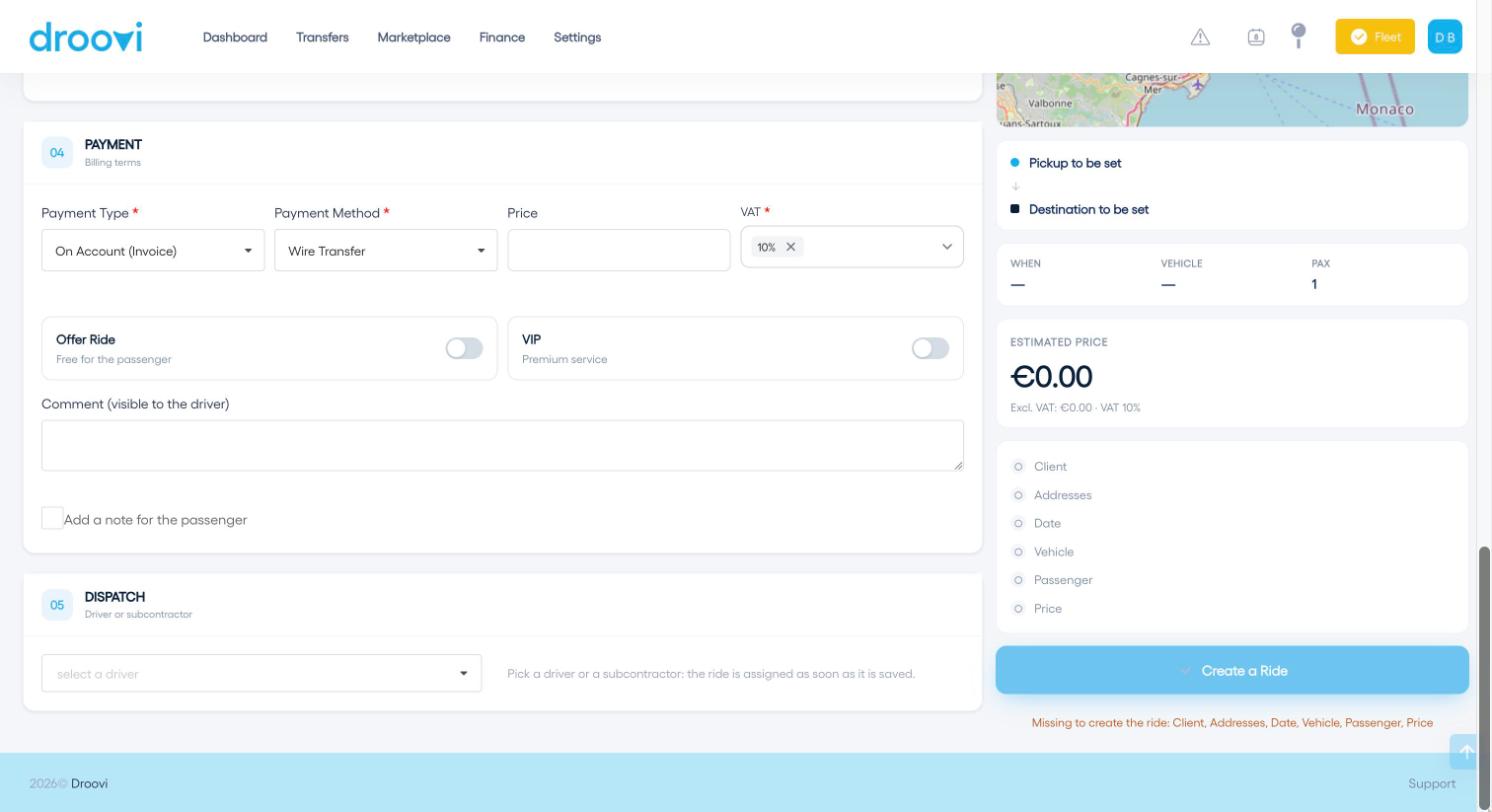
- Payment type and method (on account, wire transfer…), price and VAT. The estimated price comes from your price grids; you can change it.
- Options: free ride, VIP, comment for the driver and note for the passenger.
- Dispatch: pick a driver or a subcontractor and the ride is assigned as soon as it is saved. Otherwise it stays "To dispatch".
The "Create a Ride" button turns on once the client, addresses, date, vehicle, passenger and price are filled in. Whatever is missing is shown just below.
Learn more Droovi dispatch software Was this article helpful?