Connect your invoicing software
Droovi prepares your invoices from your rides. To turn them into real invoices with your own legal numbering, connect your invoicing software: Droovi sends the invoice there, and your software issues it.
CRM: My company, Invoicing tab, then "Connect my software". Only a manager can connect or disconnect it.
1. Pick your software
- Pick your software from the list.
- Enter the credentials it asks for (see the table). "Where do I find them?" opens the software's help.
- Click "Connect": Droovi checks the credentials with your software. They are encrypted and never shown again.
Pennylane : Your Company API Token
VosFactures : Your subdomain and API authorisation code
Qonto : Login, secret key and account IBAN
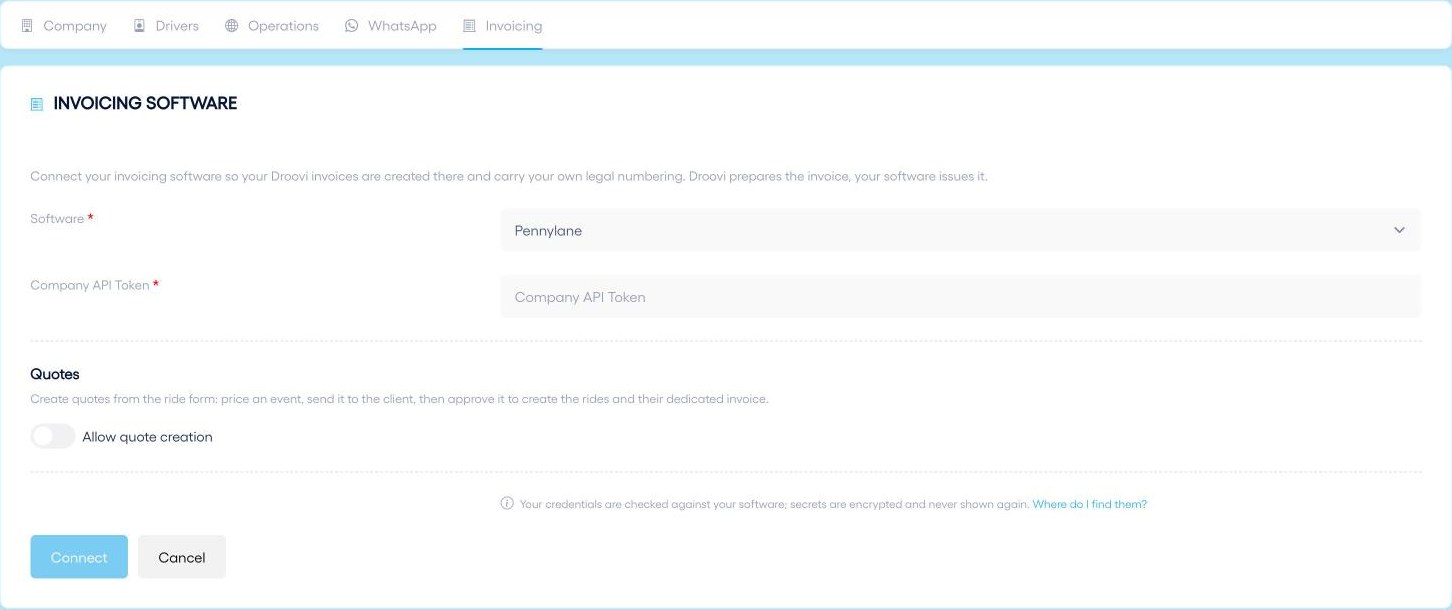
From then on, every Droovi invoice is sent as a draft to your software. You approve it from Droovi: it then gets your software's legal number, and can only be corrected with a credit note. The same screen lets you turn on quotes.
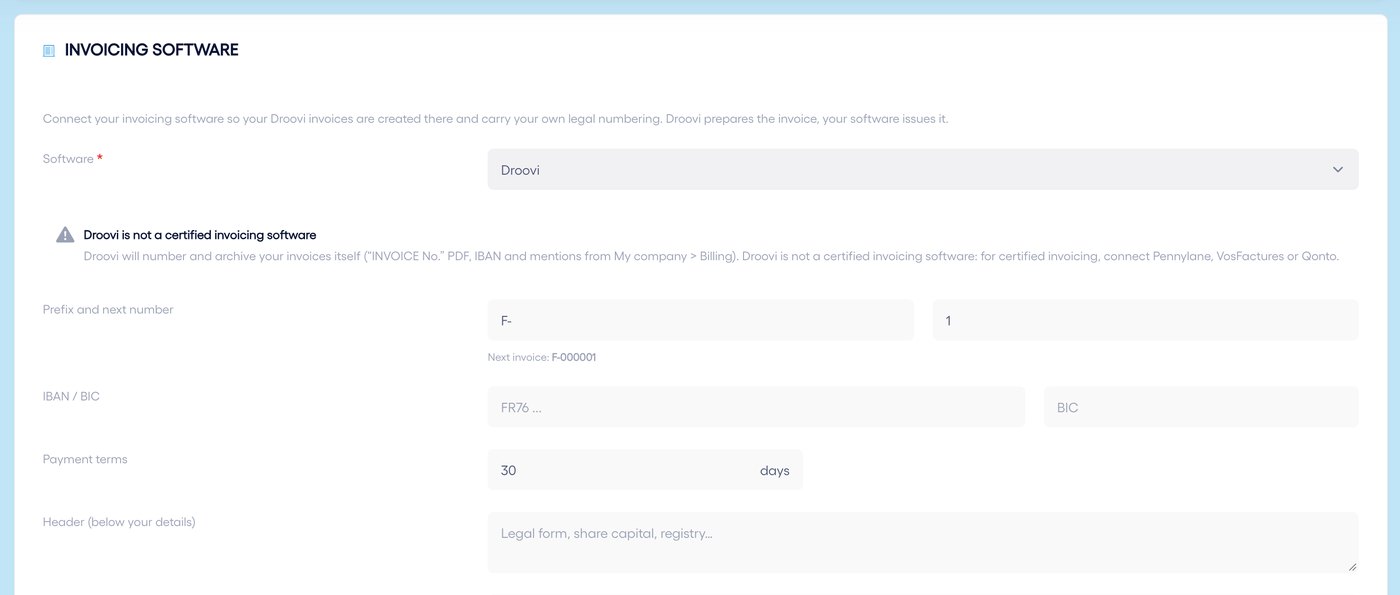
2. Or let Droovi number them
The "Droovi" option numbers and archives your invoices itself: prefix and next number, IBAN and BIC, payment terms, header and legal mentions. The PDF reads "INVOICE No." and every version is archived.
3. Your software is not listed?
Droovi is connected by API to Pennylane, VosFactures and Qonto. If your invoicing software has an API, we can add it: contact us from the in-app support.
Learn more Droovi invoicing